MonitorMojo Blog
How to Fix Missing Security Headers
Security headers can disappear silently after platform migrations, plugin updates, or hosting changes. When they are missing, visitors lose browser-level protections against common attacks. This guide walks through identifying missing security headers, understanding what each header does, and how to restore them correctly. This expanded guide explains the practical monitoring workflow behind the topic, who should use it, what to check, how to document findings, and how to turn website health signals into useful client, developer, API, CLI, or AI-agent workflows without overstating what monitoring can prove.
Step 1: Identify which headers are missing
Run a health check that includes security header verification. The check will show which headers are present and which are missing. The key headers to check are: Content-Security-Policy (CSP), Strict-Transport-Security (HSTS), X-Frame-Options, X-Content-Type-Options, Referrer-Policy, and Permissions-Policy.
Note which headers are missing. Each header serves a specific protective function. CSP helps prevent cross-site scripting. HSTS forces browsers to use HTTPS. X-Frame-Options prevents clickjacking. X-Content-Type-Options prevents MIME type sniffing.
If multiple headers are missing, this suggests a systemic issue rather than an individual header misconfiguration. A platform migration, plugin conflict, or hosting configuration change likely removed all headers at once.
Step 2: Investigate what changed
Check for recent changes to the website. Was there a platform migration, plugin update, theme change, or hosting configuration change in the days before the headers disappeared? The timing of the missing headers relative to a change gives a strong signal about the cause.
For WordPress sites, security headers are often configured through security plugins or .htaccess rules. Check whether a security plugin is active and whether its configuration is intact. A plugin update or conflict can remove header configurations.
For other platforms, security headers may be configured at the server level (Nginx, Apache) or through a CDN. Check the server configuration files and CDN settings to identify where headers should be configured.
If you cannot identify what changed, check with your hosting provider. They may have made infrastructure changes that affected header configuration.
Step 3: Restore the correct header configuration
For WordPress sites using security plugins, verify the plugin is active and configured correctly. Most security plugins have settings for each header. Enable the headers you need and save the configuration. Run a health check to verify the headers are now present.
For WordPress sites using .htaccess rules, add the header directives to the .htaccess file. Example directives include: Header set X-Content-Type-Options nosniff, Header set X-Frame-Options SAMEORIGIN, Header set Strict-Transport-Security max-age=31536000.
For Nginx servers, add header directives to the server block configuration. Example: add_header X-Content-Type-Options nosniff; add_header X-Frame-Options SAMEORIGIN; add_header Strict-Transport-Security max-age=31536000;
For Apache servers, add header directives to the virtual host configuration or .htaccess file. Enable the mod_headers module if it is not already enabled.
For sites using a CDN, check the CDN configuration. Some CDNs allow you to add custom headers through their dashboard. Verify that headers are configured at the CDN level if that is where they were previously set.
Step 4: Verify the headers are working correctly
After restoring the header configuration, run a health check to verify the headers are present. Check each header individually to confirm it is configured correctly.
For CSP headers, verify that the policy is not too permissive. A CSP that allows all inline scripts provides minimal protection. Review the policy to ensure it provides meaningful protection for your site's specific needs.
For HSTS headers, verify that the max-age value is set appropriately. A max-age of 31536000 (one year) is a common setting. If you include the includeSubDomains directive, ensure all subdomains are configured for HTTPS.
Test the site in a browser to confirm that the headers are being applied. Browser developer tools show the response headers for each request. Verify that the headers you configured are present in the response.
Step 5: Set up monitoring to detect future issues
Include security header checks in your regular health check workflow. Run checks after every platform change, plugin update, or hosting configuration change. This catches issues introduced by changes before they persist for extended periods.
For agencies managing multiple client sites, include header checks in the standard health check for every site. This ensures headers remain in place across the portfolio.
If headers disappear again after you have restored them, investigate what changed. The same type of change may be causing recurring issues. Identifying the pattern helps you prevent future occurrences.
Common mistakes when fixing missing security headers
Not investigating what caused the headers to disappear is a common mistake. If you restore headers without understanding the cause, they may disappear again after the next change.
Configuring headers too permissively is another mistake. A CSP header that allows all inline scripts provides minimal protection. Review the configuration to ensure it provides meaningful protection.
Not verifying the headers are working after restoration is a third mistake. Run a health check and test in a browser to confirm headers are present and configured correctly.
Not setting up monitoring to detect future issues is a fourth mistake. Include header checks in your regular health check workflow to catch issues early.
How MonitorMojo helps with security header monitoring
MonitorMojo includes security header presence as part of every website health check. Each check reviews whether key security headers are present alongside reachability, SSL, response time, and other signals.
For agencies, including security header checks in every health check means you can verify that headers remain in place after platform migrations, plugin updates, or hosting changes.
The results depend on hosting, DNS, infrastructure, configuration, traffic, and response process. MonitorMojo helps you see what headers are being served from outside the hosting environment.
What this workflow means
How to Fix Missing Security Headers is best understood as a repeatable website health workflow, not a promise that every outage or configuration issue will be avoided. Learn how to identify and fix missing security headers on your website. Step-by-step guide to restoring CSP, HSTS, X-Frame-Options, and other critical headers.
In practice, this workflow centers on security header presence, browser-level protections, ownership notes, and review follow-up. Each check is planning input: it can show that the site is reachable, that a certificate has a given expiry window, that response time has shifted, or that a header is missing. It cannot prove root cause by itself or replace a human response. The value is in making the review consistent enough that site owners and small teams can spot issues before someone downstream has to ask about them.
Who should use this
This is most useful for site owners and small teams. Website owners who discovered missing security headers
Beyond that primary audience, the same checks are reusable by anyone with a public-facing URL that matters to revenue, leads, or reputation: a recurring review is cheap insurance compared to hearing about the problem from a client or customer first.
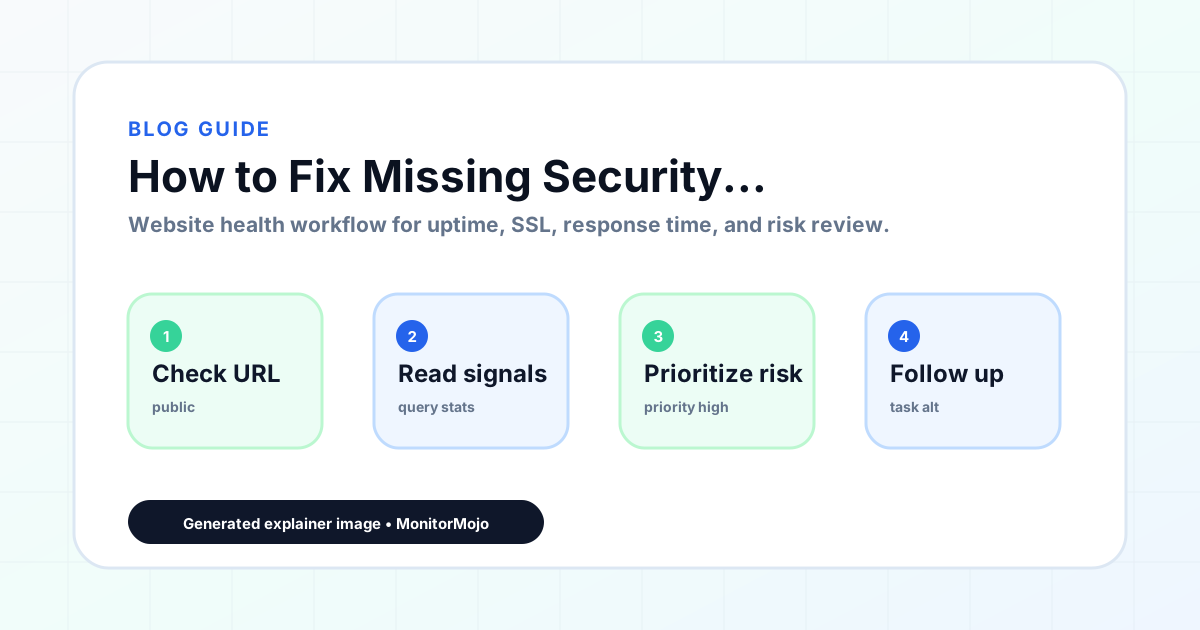
Step-by-step monitoring workflow
Start by listing the URLs that actually matter instead of just the homepage — for a small team doing a routine check before something breaks in front of a visitor, that usually means the pages tied to revenue, signups, or trust, not every page on the site.
Next, define the check types for each URL: reachability, HTTP status, HTTPS/SSL certificate status and expiry window, response time, redirect behavior, and security header presence. For API, CLI, and AI-agent workflows, document which endpoint or command runs the check and where the result is stored.
Set a cadence that matches the risk — a low-traffic page may only need a monthly look, while a page tied to revenue or signups deserves a check after every deployment and before any campaign or launch.
Record what you find with a consistent format: URL, check type, status, issue, owner, detected date, and next review date. Then say what actually happened in plain language — a check can surface a symptom, but site owners and small teams still need to confirm the cause.
- Choose the URLs that matter most to visitors, clients, revenue, and operations.
- Run uptime, SSL, response time, and security header checks on a consistent schedule.
- Triage failed or risky checks by likely owner: hosting, DNS, SSL, code, platform, or third party.
- Record notes in a repeatable format so future reviews do not start from scratch.
- Send a plain-language summary with the issue, impact, owner, and next review date.
- Run a confirmation check after remediation so there is an external result to reference.
Checklist or template
Use this template for recurring reviews: [URL], [Check Type], [Status], [Issue], [Priority], [Owner], [Detected Date], [Resolved Date], [Next Review Date]. Add a one-line summary at the top: what changed, what needs attention, and who owns the next step.
For site owners and small teams, group findings into the four signals that matter most: reachability, SSL status, response time, and security headers. Where nothing needs action, say the check found no issue in that area rather than implying full coverage.
- [URL]: the exact page or endpoint checked.
- [Check Type]: uptime, SSL, response time, headers, API, CLI, or agent workflow.
- [Status]: pass, review, failed, blocked, or needs human investigation.
- [Issue]: the observable symptom, not an unsupported root-cause claim.
- [Owner]: agency, developer, host, DNS provider, client, or third-party vendor.
- [Next Review Date]: when the team should confirm status again.
Common mistakes
The most common mistake is monitoring only the homepage while a checkout, signup, or booking flow silently breaks. Another is assuming SSL auto-renewal always works — it can fail quietly, and an external check is the only way to catch that before a browser warning does.
For site owners and small teams specifically, the recurring miss is treating one clean check as proof the whole site is fine, or fixing an issue without ever writing down what happened — which means the next person repeats the same investigation from zero.
- Tracking too many low-value URLs while missing the ones that matter.
- Skipping notes after an issue is resolved.
- Reporting a status without an owner or next step attached.
- Assuming automation can resolve an incident without human review.
- Treating one clean check as proof that every risk is covered.
Practical example
Consider a small team doing a routine check before something breaks in front of a visitor. A scheduled check flags that the site is slower than its usual baseline and that a security header is missing. Instead of guessing, the team logs the observation with a timestamp, assigns an owner, and re-checks after the fix ships — turning a vague "something feels off" into a specific, closed-loop task.
How MonitorMojo helps
MonitorMojo runs website health checks that combine reachability, SSL certificate status, response time, and security header presence in one workspace, so this workflow doesn't require stitching together several separate tools.
The API and CLI make the same checks scriptable for site owners and small teams who want them wired into an existing process, while credit-based checks keep it practical to run reviews exactly when they matter — before a client call, after a deploy, or when someone asks whether the site is healthy. Results still depend on hosting, DNS, and how quickly the responsible team acts on what the check finds.
Who this is for
- Website owners who discovered missing security headers
- Developers restoring header configuration after changes
- Agencies verifying headers across client sites
- Anyone responsible for website security
Frequently Asked Questions
How do I check which security headers are missing?
Run a health check that includes security header verification. The check shows which headers are present and which are missing.
What causes security headers to disappear?
Platform migrations, plugin updates, theme changes, and hosting configuration changes can silently remove headers. The timing relative to changes gives signals about the cause.
How do I restore headers on WordPress?
Check security plugins and .htaccess rules. Verify the plugin is active and configured correctly, or add header directives to .htaccess.
How do I verify headers are working?
Run a health check to verify headers are present. Test in a browser using developer tools to see response headers.
How do I prevent headers from disappearing again?
Include header checks in your regular health check workflow. Run checks after every platform change to catch issues early.
Can this prevent every issue with the site?
No. Monitoring helps site owners and small teams detect website health signals and organize follow-up, but it does not prevent every outage, SSL issue, slow response, or third-party failure. The result still depends on hosting, DNS, infrastructure, and how quickly the responsible team investigates and responds.