MonitorMojo Blog
How to Set Up Uptime Monitoring
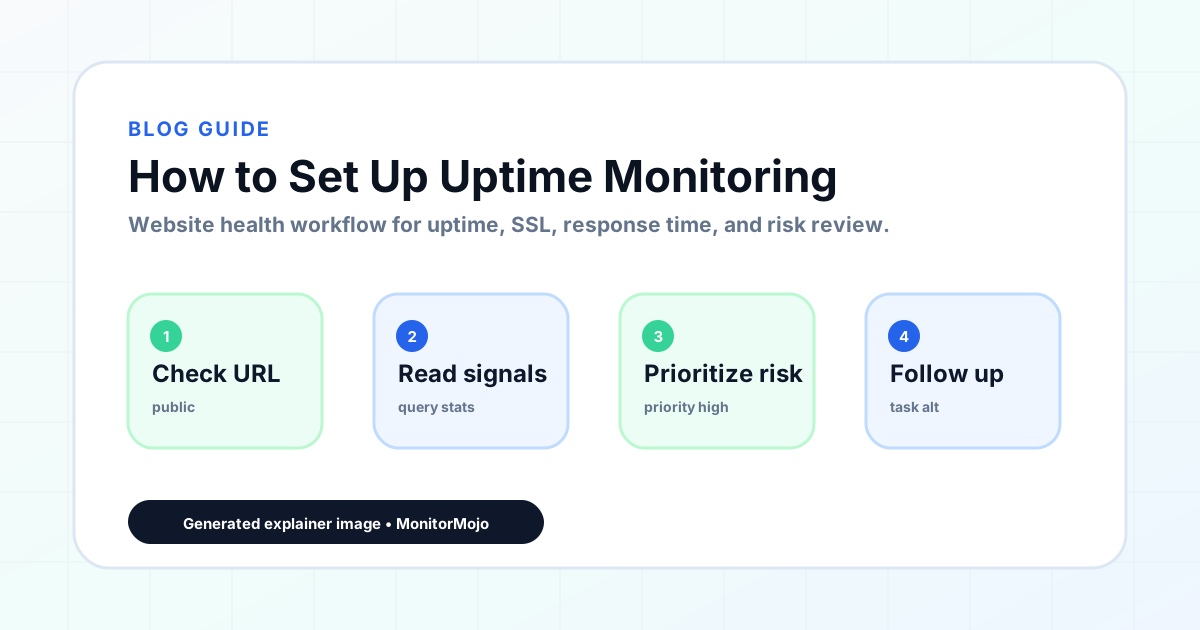
Uptime monitoring is the practice of checking whether a website is reachable and responding at regular intervals, so that when something goes wrong you find out before your visitors do. Setting it up properly means choosing the right check frequency, knowing what to monitor beyond just the homepage, configuring alerts that actually get attention, and building a reporting workflow that makes the monitoring useful over time. This guide walks through each of those steps so you can build an uptime monitoring setup that works for a single site or a portfolio of client websites.
What uptime monitoring actually checks
At its core, uptime monitoring sends a request to your website at a set interval and records whether the site responded, what HTTP status code it returned, and how long it took. A 200 status code means the site is up and serving content normally. A 500-level status code means the server encountered an error. A timeout means the site did not respond within the expected window. These three states form the foundation of every uptime monitoring workflow.
Beyond basic reachability, most uptime monitoring tools also check whether the site responds over HTTPS with a valid SSL certificate. A site that returns a 200 status code but has an expired SSL certificate is technically reachable but effectively broken for most visitors, since modern browsers display a full-screen warning before the content loads. Good uptime monitoring catches both types of failures.
Some monitoring setups also check for specific content on the page — verifying that a key element like the site title or a specific HTML element is present in the response. This catches situations where the server responds with a 200 status code but the page content is wrong, such as a database error page that loads but displays an error instead of the expected content.
Step 1: Decide what to monitor
The first decision in setting up uptime monitoring is choosing which URLs to check. The homepage is the obvious starting point, but it is rarely the only page that matters. For most websites, the pages that drive business value — the contact form, the checkout page, the booking flow, the login page — are at least as important as the homepage, and often more important.
Make a list of every URL that matters to your business or your client's business. This typically includes the homepage, any page that generates leads or revenue, any page behind authentication that users interact with regularly, and any API endpoints that other systems depend on. For a typical business website, this list is between three and ten URLs.
For agencies managing multiple client sites, create this list for each client during onboarding. Ask the client which pages are most important to their business. Most clients will immediately name the pages that generate leads or sales — these are the ones where downtime has the most direct business impact, and these are the ones to prioritize in your monitoring setup.
Do not try to monitor every page on the site. Monitoring too many URLs creates noise without proportional value. Focus on the pages where a failure would have a meaningful impact on the business, and keep the list tight enough that alerts remain actionable.
Step 2: Choose your check frequency
Check frequency determines how often the tool sends a request to your site. On MonitorMojo, checks can be scheduled as often as every 15 minutes and up to every 24 hours, with a 15-minute interval being the fastest available. The right frequency depends on how quickly you need to detect an issue and how many credits you want to spend.
For business-critical pages — checkout, booking, login — the shortest available interval of 15 minutes is appropriate. These are pages where every minute of downtime has a direct cost in lost transactions or frustrated users. For standard pages — the homepage, informational pages, blog content — a 30-minute to 1-hour frequency is usually sufficient.
Higher frequency means more checks per day, which means more data but also more potential for false alerts. A 1-minute check on a site that occasionally has brief response time spikes may generate alerts that are not actionable. Start with a moderate frequency and adjust based on what you learn about the site's behavior over the first few weeks.
For agencies managing multiple client sites, use a tiered approach: high-frequency checks for revenue-critical pages, standard frequency for everything else. This keeps the total check volume manageable while ensuring the most important pages get the closest attention.
Step 3: Configure alerts that get attention
An uptime alert is only useful if the right person sees it and responds. Configure alerts to reach whoever is responsible for the site — for your own site, that might be your phone. For client sites, it should reach the team member responsible for that client's account. Alerts that go to a shared inbox that nobody monitors are effectively the same as no alerts at all.
MonitorMojo supports multiple alert channels: email, Slack, Discord, webhook, and Microsoft Teams. Use the channel that the responsible person actually checks. For urgent issues on critical sites, a direct messaging integration like Slack or Discord is more effective than email, which may not be checked for hours.
Configure alert thresholds carefully. A single failed check should not immediately trigger an alert — most sites have occasional brief hiccups that resolve on their own. Set the alert to trigger after two or three consecutive failed checks, which filters out transient issues while still catching real problems quickly. A 5-minute check interval with a 3-failure threshold means an alert fires after approximately 15 minutes of confirmed downtime.
Also configure a recovery alert — a notification that fires when the site comes back online. This lets you close the incident without manually checking, and it provides a record of the total downtime duration. Recovery alerts are also useful for confirming that a fix actually worked.
Step 4: Set up a response process
Monitoring without a response process is just watching problems happen. When an alert fires, there should be a clear sequence of actions: who investigates, what they check first, how they communicate with the client or team, and how they confirm the issue is resolved. Without this process, alerts create confusion rather than resolution.
A basic response process starts with acknowledging the alert, then checking the site with an external health check tool to confirm the issue is real and not a monitoring false positive. If the issue is confirmed, investigate the likely causes — check the hosting provider's status page, look for recent changes to the site, verify SSL certificate status. Communicate with the client or team about what is happening and what you are doing.
Document every incident: the time the alert fired, what the issue was, what action resolved it, and how long the total downtime lasted. This documentation serves two purposes. It provides a record for client communication and post-incident reviews. It also reveals patterns over time — if the same type of issue recurs monthly, there is a process gap that can be addressed.
For agencies, the response process should be written down and shared with every team member who might receive an alert. A documented process means that when an alert fires at 2am and the on-call person is not the one who set up the monitoring, they still know what to do.
Step 5: Build a reporting workflow
Uptime monitoring generates data that becomes valuable when reviewed over time. A monthly uptime report showing 99.8% availability is useful context for a client conversation. A response time trend that shows gradual degradation over three months is an early warning to investigate hosting performance before it becomes a visitor-facing problem.
Set up a monthly review of uptime data for each site you monitor. Look at total uptime percentage, the number and duration of any incidents, response time trends, and any patterns in when issues occur. For client sites, include this data in the monthly health report — it is concrete evidence that monitoring is active and provides context for the site's overall health.
Response time trends deserve particular attention. A site that consistently responds in 200ms but suddenly starts responding in 800ms has not gone down, but the degradation may affect user experience and conversion rates. Catching this trend through monitoring data lets you investigate the cause — a bloated database, a misconfigured cache, a hosting resource limit — before it gets worse.
Keep reports simple. The audience for uptime reports is usually a client or a team lead who wants to know: was the site available, how fast was it, and did anything need attention. A one-page summary with key metrics and any notable incidents is more useful than a detailed technical log that nobody reads.
Step 6: Review and adjust your setup
Uptime monitoring is not a set-and-forget configuration. Sites change, business priorities shift, and the monitoring setup should evolve accordingly. Schedule a quarterly review of your monitoring configuration: are you checking the right pages, is the check frequency appropriate, are alerts reaching the right people, and is the response process still working as intended.
When a client launches a new page or feature, add it to the monitoring list if it is business-critical. When a page is deprecated or replaced, remove it from monitoring to avoid false alerts. When the team changes, update alert routing so the current responsible person receives notifications.
Pay attention to false alerts. If a particular check generates frequent false positives — perhaps the site has a known brief maintenance window every night, or a particular page occasionally times out due to a heavy background process — adjust the check configuration or add an exclusion for that window. False alerts erode trust in the monitoring system and lead to alert fatigue, where real issues get ignored because the alerts have cried wolf too many times.
Results depend on hosting, DNS, infrastructure, configuration, traffic, and response process. Monitoring helps you detect issues earlier and respond faster, but it does not control the underlying systems. The goal is to minimize the time between an issue occurring and someone taking action to resolve it.
Common uptime monitoring mistakes to avoid
Only monitoring the homepage is the most common mistake. The homepage is usually the most stable page on the site because it gets the most attention. The checkout page, the booking form, and the login page are where failures have the most direct business impact, and these are the pages most commonly left unmonitored.
Setting alert thresholds too low is another frequent error. A single failed check triggering an immediate alert creates noise from transient issues. Wait for two or three consecutive failures before alerting to filter out brief hiccups while still catching real problems quickly.
Not testing the alert pipeline is a mistake that often surfaces at the worst time. When you first set up monitoring, trigger a test alert to confirm it reaches the right person through the right channel. Do this again whenever you change alert configuration. An alert system that is not tested is an alert system you cannot trust.
Skipping the response process documentation means every incident starts from scratch. The person responding to a 3am alert should not have to figure out the process in the moment. Write it down, share it with the team, and update it when the process changes.
Who this is for
- Website owners setting up monitoring for their own site for the first time
- Agencies building an uptime monitoring workflow for client websites
- Freelancers adding uptime monitoring to their maintenance service offering
- Developers who want a structured approach to site reliability monitoring
- Anyone managing multiple websites who needs a repeatable monitoring process
Frequently Asked Questions
What check frequency should I start with?
Five minutes is a reasonable starting point for most websites. This gives you detection within 15 minutes for a real outage (three consecutive failures) without generating excessive check volume. For business-critical pages like checkout or booking, you can increase to 1-minute checks once you understand the site's normal behavior pattern.
Should I monitor HTTP or HTTPS?
Monitor HTTPS. Most websites redirect HTTP to HTTPS, and the HTTPS version is what visitors actually use. Monitoring the HTTPS endpoint checks both reachability and SSL certificate validity in a single check. If you also want to verify that the HTTP-to-HTTPS redirect is working, add the HTTP URL as a separate check with a redirect validation.
How do I handle false alerts from known maintenance windows?
Most monitoring tools support maintenance windows or alert suppression for scheduled periods. If your site has a known maintenance window every Tuesday from 2am to 3am, configure the monitoring to suppress alerts during that window. This prevents predictable, expected downtime from generating alerts that erode trust in the monitoring system.
Can uptime monitoring detect slow performance without a full outage?
Yes. Uptime monitoring records response time with every check. By reviewing response time trends over days and weeks, you can detect gradual performance degradation that has not yet caused an outage but may affect user experience. A site that normally responds in 200ms but has drifted to 600ms over a month is worth investigating before it gets worse.
What uptime percentage should I aim for?
99.9% uptime allows approximately 8.7 hours of downtime per year. 99.5% allows about 43.8 hours. The right target depends on the site's business criticality and the hosting infrastructure. Results depend on hosting, DNS, infrastructure, and configuration — monitoring helps you track actual performance against whatever target you set, but the target itself should reflect the reality of your hosting environment.