MonitorMojo Blog
Website Monitoring Mistakes That Cause Missed Issues
Most website monitoring setups have gaps — not because the people running them are careless, but because the common mistakes are easy to make and their consequences only become visible when something goes wrong. Only checking the homepage while ignoring critical subpages. Setting up uptime monitoring but not tracking SSL certificates. Running checks on a schedule but skipping them after site changes. Not documenting what was checked or what the results showed. Each of these mistakes creates a blind spot where issues can develop without detection. This guide identifies the most common monitoring mistakes and explains how to build a workflow that closes the gaps.
Mistake 1: Only monitoring the homepage
The homepage is the most commonly monitored page on any website, and it is usually the least likely to have problems. It gets the most attention from developers, it is the most tested page during updates, and it is typically the simplest page in terms of functionality. Monitoring only the homepage is like checking the front door of a building and assuming every room inside is fine.
The pages where failures have the most direct business impact are rarely the homepage. The checkout page on an ecommerce site, the booking form on a services site, the login page on a SaaS application, the contact form on a lead generation site — these are the pages where a failure means lost revenue, lost leads, or frustrated users. And these are the pages most commonly left out of monitoring setups.
The fix is straightforward. During monitoring setup, list every page on the site that has business-critical functionality. Add each of these pages to the monitoring configuration. For most business websites, this means monitoring between three and ten pages rather than just one. The additional checks take minimal time and provide coverage where it actually matters.
For agencies managing client sites, ask the client which pages are most important to their business during onboarding. The client will name the pages that generate leads or revenue — these are the pages to prioritize. Then add the homepage and any other key pages to round out the monitoring coverage.
Mistake 2: Ignoring SSL certificate monitoring
Uptime monitoring and SSL monitoring are related but distinct. A site can be technically reachable — returning a 200 status code — while having an expired SSL certificate that causes every visitor to see a browser warning instead of the website. If your monitoring only checks whether the site responds, without checking the SSL certificate status, you have a gap that can leave a site effectively down for hours or days before anyone notices.
SSL certificates expire on a schedule that is known in advance, typically 90 days to 13 months after issuance. The expiry date is visible in the certificate details, and it can be checked externally without server access. Despite this, SSL certificate expiry remains one of the most common causes of unexpected website failures, particularly for sites managed by agencies where the certificate is on a different hosting account than the one being actively managed.
The fix is to include SSL certificate checking as a standard part of every health check. A comprehensive check should verify that the SSL certificate is currently valid, report the expiry date, and flag any certificates that are within 30 days of expiry. This takes seconds to add to a monitoring workflow and prevents one of the most visible and embarrassing types of website failures.
For agencies, track SSL certificate expiry dates for every client site in a centralized inventory. Set alerts at 60, 30, and 14 days before expiry. Even when certificates are set to auto-renew, verify that the renewal actually completed by checking the live certificate's expiry date after the expected renewal date.
Mistake 3: Not running checks after site changes
The most common time for a website issue to appear is immediately after a change. A plugin update introduces a conflict. A hosting migration changes the server configuration. A content update breaks a page layout. A DNS change causes propagation issues. These are all predictable outcomes of changes, and they are all detectable with a health check run shortly after the change is made.
Despite this, many monitoring workflows run on a fixed schedule — monthly, weekly, or at whatever interval was configured — without additional checks triggered by changes. This means a problem introduced by a Tuesday update may not be detected until the next scheduled check, which could be days or weeks later. During that time, visitors are experiencing the issue.
The fix is to add a post-change health check to every change process. After any significant site change — CMS update, plugin update, hosting migration, DNS change, theme update, new feature deployment — run a health check within the first hour. This check should verify reachability, SSL status, response time, and key page functionality. If anything is wrong, it is caught immediately rather than at the next scheduled check.
For agencies, make the post-change check a required step in the change process. It should not be optional or dependent on someone remembering to do it. Build it into the deployment checklist: apply the change, run the health check, confirm results, close the task. If the check is not run, the task is not complete.
Mistake 4: No documentation of what was checked
Monitoring without documentation is just activity without evidence. If you run a health check but do not record the results, you have no way to compare current status to previous status, no evidence to show a client that checks are being performed, and no history to reference when investigating an issue. The check happened, but there is no record that it did.
Documentation does not need to be elaborate. For each check, record the date, the site checked, the key results (reachability status, SSL expiry date, response time, any findings), and any actions taken. This can be a row in a spreadsheet, an entry in a project management tool, or a note in the client record. The format matters less than the consistency.
The value of documentation becomes clear over time. When a client asks 'has my site been slow lately?' you can reference response time data from the past three months rather than guessing. When an issue recurs, you can check whether it happened before and what resolved it last time. When it is time to renew a care plan, you have a record of every check performed and every issue caught during the agreement period.
For agencies, documentation is also a delegation tool. When the person who runs the checks is unavailable, the documented history lets someone else pick up the workflow without starting from scratch. The record shows what was checked, when, and what the normal results look like — making it possible for any team member to run the check and identify anything that looks different.
Mistake 5: Alerts that nobody acts on
An alert system is only as good as the response it generates. Alerts that go to a shared inbox that nobody monitors, alerts that fire so frequently they are ignored, alerts that do not include enough information to take action — these are all forms of monitoring theater. The system is in place, but it does not produce a response when it matters.
The most common version of this mistake is alert fatigue. When the monitoring system generates frequent false positives — brief response time spikes that resolve on their own, known maintenance windows that trigger downtime alerts, subdomains that are intentionally offline — the team learns to ignore the alerts. And when a real issue triggers an alert, it gets ignored along with the noise.
The fix starts with tuning the alert thresholds. Require two or three consecutive failed checks before firing an alert, which filters out transient issues. Add maintenance window exclusions for known scheduled downtime. Remove monitoring for intentionally offline subdomains. The goal is for every alert to represent a real issue that needs attention — when that is the case, the team trusts the alerts and responds to them.
The second part of the fix is clear alert ownership. Every monitored site should have a designated responder — the person who receives the alert and is responsible for investigating. For agencies, this is typically the account manager or the technical lead for that client. When alerts go to 'the team' without a specific owner, they go to everyone and no one.
Mistake 6: Treating monitoring as a one-time setup
Monitoring is often set up when a site launches or when a care plan begins, and then never revisited. But sites change. New pages are added. Old pages are removed. Hosting migrations change the infrastructure. Team changes alter who is responsible for responding to alerts. SSL certificates are renewed with different providers or different configurations. A monitoring setup that is not reviewed becomes outdated and develops gaps.
The fix is a periodic review of the monitoring configuration — quarterly is a reasonable cadence for most sites. During the review, verify that every page being monitored is still active and relevant. Check that alert routing reaches the current responsible person. Confirm that SSL certificate tracking reflects the current certificates in use. Review whether the check frequency is still appropriate for each page's business criticality.
For agencies, include the monitoring review as part of the quarterly client care plan review. This is a natural touchpoint to discuss whether the monitoring coverage still matches the client's current site structure and business priorities. New pages launched since the last review should be added to monitoring. Deprecated pages should be removed.
Document the review itself — what was checked, what was updated, and what was confirmed as still correct. This creates a record that the monitoring setup is actively maintained, not just running on autopilot from an initial configuration that may no longer match reality.
Building a monitoring workflow that avoids these mistakes
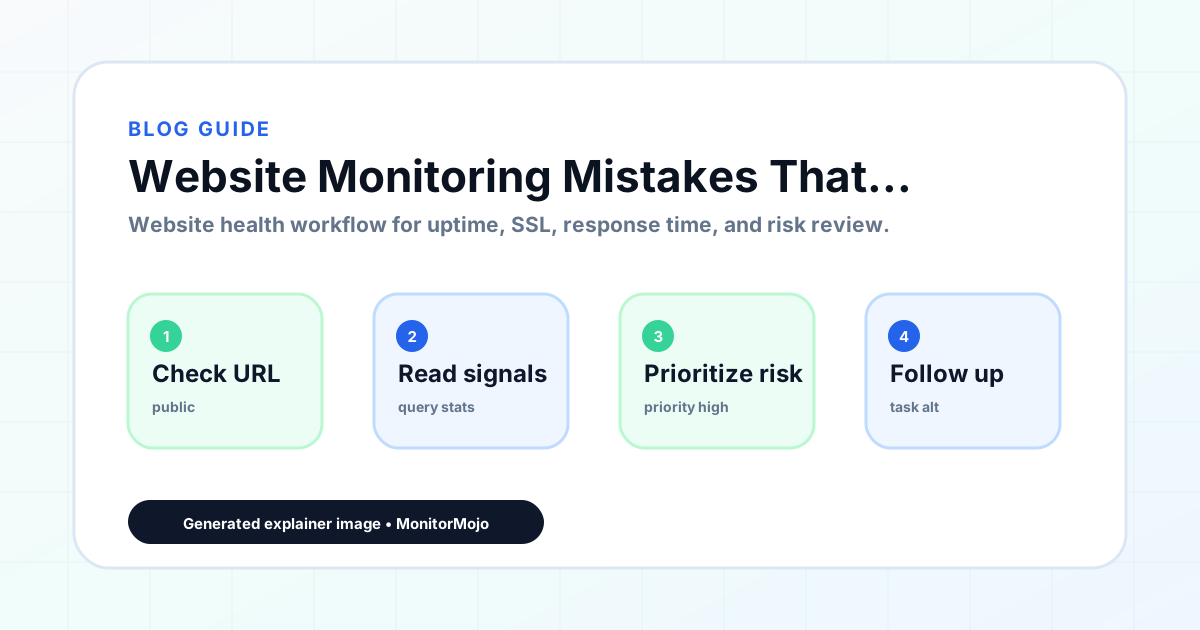
The common thread across these mistakes is a monitoring setup that is incomplete or static. The fix is a workflow that covers the right pages, includes SSL monitoring, runs checks after changes, documents results, routes alerts to the right people, and is reviewed periodically. None of these elements are complex individually, but together they form a comprehensive monitoring setup that catches issues earlier and leaves fewer gaps.
Start with the page inventory. List every business-critical page across every site you manage. Add each to monitoring. Then add SSL certificate tracking for every domain and subdomain. Configure alerts with appropriate thresholds and clear ownership. Add a post-change check to every deployment process. Document every check. Review the configuration quarterly.
This workflow takes time to set up initially — a few hours for a single site, a day or more for a portfolio of client sites. But once established, the ongoing maintenance is minimal. The checks run on schedule, the alerts fire when needed, the documentation accumulates, and the quarterly review keeps everything current. The result is a monitoring setup that helps detect issues earlier and provides evidence of the work being done.
MonitorMojo helps organize these checks into a single workflow. Run health checks that cover reachability, SSL status, response time, and security headers. Document results that can be referenced in client reports. Use the data to build the kind of monitoring history that makes quarterly reviews efficient and care plan renewals straightforward.
Who this is for
- Website owners who want to audit their current monitoring setup for gaps
- Agencies looking to improve their client website monitoring workflow
- Freelancers who want to avoid common monitoring mistakes in their maintenance service
- DevOps teams reviewing their website monitoring coverage
- Anyone who has had a website issue go undetected and wants to prevent it from happening again
Frequently Asked Questions
How do I know if my current monitoring has gaps?
Compare your monitoring coverage against the list of business-critical pages on your site. If you only monitor the homepage, you likely have gaps on pages that generate leads or revenue. Check whether SSL certificate expiry is being tracked separately from uptime. Verify that post-change checks are part of your deployment process. These three areas are where most monitoring setups have blind spots.
What is the most costly website monitoring mistake?
Ignoring SSL certificate monitoring is arguably the most costly in terms of immediate impact. An expired SSL certificate causes a full-screen browser warning that blocks most visitors, effectively taking the site offline. The site may be technically reachable, but visitors cannot access it without overriding the warning. This type of failure is entirely preventable with SSL expiry tracking.
How often should I review my monitoring configuration?
Quarterly reviews are a practical cadence for most websites. This is frequent enough to catch changes in site structure, team responsibilities, and certificate configurations before they create gaps, but not so frequent that the review becomes a burden. For sites that change frequently — new pages, regular deployments — consider monthly reviews.
What is the simplest way to start documenting monitoring results?
A spreadsheet with one row per check works. Columns for date, site, reachability status, SSL expiry date, response time, findings, and actions taken. This takes two minutes to fill in after each check and provides a history that becomes valuable within the first month when you need to reference a previous result or show a client that checks are being performed.
Can monitoring catch every website issue?
No monitoring setup catches every issue. Monitoring helps detect issues related to reachability, SSL certificates, response time, and security configuration. It does not catch issues that require user interaction to detect — a broken form submission, a checkout flow error, or a content display problem on a specific browser. Results depend on hosting, DNS, infrastructure, configuration, traffic, and response process. Monitoring is one part of a comprehensive website maintenance approach.