MonitorMojo Blog
WordPress Uptime Monitoring: What Site Owners Should Watch
WordPress powers a significant portion of the web, and its flexibility comes with specific monitoring challenges that do not apply to simpler static sites. Plugin updates can introduce conflicts that break the site. Hosting environments shared with hundreds of other WordPress installations can experience resource contention. SSL certificates can break after theme or plugin updates that change how the site handles HTTPS. The WordPress admin dashboard may report that the site is working normally while visitors encounter errors, broken layouts, or security warnings. WordPress uptime monitoring needs to account for these platform-specific risks and check the site from outside the hosting environment to see what visitors actually experience.
Why WordPress sites need external uptime monitoring
WordPress sites often have internal health indicators that can be misleading. The WordPress admin dashboard may show the site as functioning normally while a plugin conflict is causing a white screen of death for visitors on the front end. The hosting provider's monitoring may report the server as healthy while WordPress is returning PHP errors that break page rendering. Jetpack or other monitoring plugins hosted on the same infrastructure may not detect issues that external visitors experience.
External uptime monitoring checks the site from outside the hosting environment, which is how visitors actually access it. This catches issues that internal monitoring misses — DNS propagation problems, CDN misconfigurations, SSL certificate issues that only affect external connections, and regional accessibility problems. For WordPress sites that serve local businesses, checking from the location of the target audience is particularly important because regional routing issues can make the site unreachable for the people who need it most.
The WordPress ecosystem also introduces dependencies that can fail independently of the core platform. A CDN serving theme assets may go down while WordPress itself is running fine, causing the site to load without styling. A third-party API that a plugin depends on may become unavailable, causing errors on pages that use that plugin. External monitoring catches these dependency failures because it checks the fully rendered page, not just the WordPress application server.
Plugin conflicts and their impact on site availability
Plugin conflicts are one of the most common causes of WordPress site issues. When two plugins try to modify the same WordPress function, or when a plugin update introduces code that is incompatible with the current version of WordPress or another active plugin, the result can range from a minor display issue to a complete site failure. The WordPress white screen of death, where the site returns a blank page with no content, is frequently caused by a PHP fatal error from a plugin conflict.
The challenge with plugin conflicts is that they often appear after an update. A site that has been running smoothly for months can break immediately after a plugin auto-update runs. The site owner may not be aware that the update occurred, and the internal WordPress dashboard may still be accessible even though the front end is broken. This is why external monitoring is essential — it detects front-end failures regardless of whether the WordPress admin is still functional.
A practical monitoring approach for WordPress sites includes running a health check after every plugin update, theme update, and WordPress core update. The check should verify that the site returns a valid page with the expected content, that response time has not degraded, and that SSL is still functioning correctly. If the check fails after an update, the timing gives a strong signal that the update caused the issue, which helps narrow down the troubleshooting process.
SSL certificate issues after WordPress updates
SSL certificates on WordPress sites can break in several ways related to platform updates and configuration changes. A theme update that changes how the site handles URLs may introduce mixed content issues where some resources load over HTTP while the page loads over HTTPS. A hosting migration triggered by a managed WordPress host may change the server configuration in ways that affect SSL certificate installation. A plugin that handles SSL or redirects may conflict with the server-level HTTPS configuration after an update.
The most common SSL issue for WordPress sites is the HTTP to HTTPS redirect not functioning correctly after a change. WordPress stores the site URL in its database, and if the URL is set to HTTP while the server expects HTTPS, or vice versa, the redirect chain can break. This results in visitors seeing browser security warnings or being unable to access the site. Monitoring the HTTP to HTTPS redirect behavior as part of the health check workflow catches these issues quickly.
Let's Encrypt certificates, which are commonly used on WordPress hosting, have a 90-day validity period and rely on automatic renewal. If the renewal process fails — because of a DNS change, a hosting configuration issue, or a problem with the ACME challenge — the certificate expires and visitors see security warnings. Monitoring SSL certificate expiry gives site owners advance notice so they can investigate renewal failures before the certificate actually expires.
Step-by-step WordPress monitoring workflow
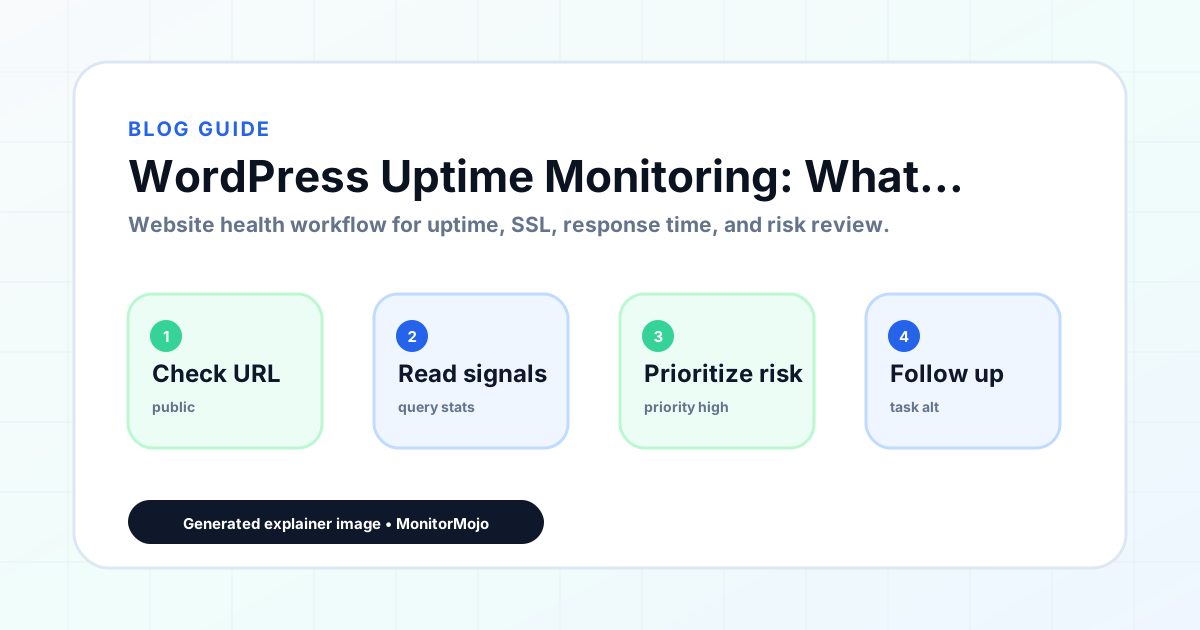
The first step is to identify the key pages on the WordPress site that need monitoring. At minimum, this should include the homepage, any pages that receive paid traffic, the contact or booking page, and any pages critical to the business purpose of the site. For ecommerce WordPress sites using WooCommerce, the product pages and checkout flow need separate monitoring targets. Each page should be checked as a separate URL because WordPress can render different pages differently, and a plugin conflict may affect only certain page types.
The second step is to run a comprehensive health check on each target URL. The check should verify reachability, SSL certificate validity and expiry, server response time, HTTP to HTTPS redirect behavior, and security headers. WordPress sites often have specific security header configurations handled by plugins, and an update or conflict can remove these headers without the site owner noticing. The health check provides a snapshot of all these signals in one result.
The third step is to establish a check cadence that accounts for WordPress's update cycle. WordPress core, plugins, and themes release updates frequently, and many WordPress sites have auto-updates enabled. Running health checks daily provides reasonable coverage for detecting issues introduced by automatic updates. Running an additional check immediately after any manual update — plugin, theme, or core — provides faster detection of update-related problems.
The fourth step is to respond to check results based on the type of issue detected. If the site is unreachable, investigate hosting status and DNS. If SSL has expired or is showing errors, check the certificate renewal process and hosting SSL configuration. If response time has degraded, investigate with the hosting provider — shared hosting resource contention is a common cause. If security headers have disappeared, check whether a plugin update or conflict has affected the header configuration.
WordPress hosting considerations for uptime
WordPress hosting environments vary significantly in their reliability and performance characteristics. Shared hosting places the WordPress site on a server with hundreds or thousands of other websites, and resource contention from other sites can affect response time and availability. Managed WordPress hosting typically provides better performance and support but at a higher cost. The hosting environment directly affects the uptime and response time that monitoring detects.
Shared hosting resource limits are a common cause of WordPress performance issues. PHP memory limits, execution time limits, and concurrent connection limits can all cause the site to slow down or return errors under traffic spikes. If monitoring shows response time degradation during periods of higher traffic, the hosting resource limits are worth investigating. The results depend on hosting, DNS, infrastructure, configuration, traffic, and response process, and the hosting environment is often the limiting factor for WordPress sites.
Hosting provider maintenance windows and outages also affect WordPress site availability. Most hosting providers perform scheduled maintenance that can cause brief periods of downtime. Knowing the hosting provider's maintenance schedule helps distinguish between expected maintenance downtime and unexpected issues. If monitoring detects downtime that coincides with a announced maintenance window, no action is needed. If downtime occurs outside maintenance windows, it warrants investigation with the hosting provider.
Common WordPress monitoring mistakes to avoid
Relying only on WordPress plugins for monitoring is a common mistake. Monitoring plugins run on the same hosting infrastructure as the WordPress site itself. If the hosting server is down, the monitoring plugin is also down and cannot send alerts. If a plugin conflict breaks the front end but leaves the admin accessible, the monitoring plugin may report the site as healthy. External monitoring checks the site from outside the hosting environment and catches these infrastructure-level and front-end issues.
Only checking the homepage is another mistake. WordPress renders different page types — posts, pages, archives, WooCommerce products — using different template files. A theme update or plugin conflict may break one template while leaving others functional. Checking only the homepage can miss issues that affect other page types. The monitoring workflow should include at least one URL of each major page type used on the site.
Ignoring response time until the site becomes completely unresponsive is a third mistake. WordPress sites on shared hosting often experience gradual response time degradation as the site grows, more plugins are added, or the database accumulates content. A site that normally responds in 500ms and gradually degrades to four seconds is delivering a poor visitor experience long before it triggers a downtime alert. Tracking response time trends helps identify when the site has outgrown its hosting plan or when a plugin is introducing performance overhead.
Not monitoring after updates is a fourth mistake. WordPress updates — core, plugin, and theme — are the most common trigger for site issues. Running a health check after every update, whether automatic or manual, provides fast detection of update-related problems. The shorter the gap between the update and the detection, the faster the issue can be rolled back or fixed.
How MonitorMojo helps WordPress site owners monitor their sites
MonitorMojo helps WordPress site owners monitor their sites from outside the hosting environment, which is what visitors actually experience. Each health check covers reachability, SSL certificate validity and expiry, server response time, HTTP redirect behavior, security headers, and domain risk notes. This gives WordPress site owners a clear picture of site health without relying on plugins that run on the same infrastructure they are trying to monitor.
The credit-based pricing model is practical for WordPress site owners who want to run regular checks without committing to expensive monitoring subscriptions. Checks can be run daily for routine monitoring, immediately after any update for fast issue detection, and on an on-demand basis when investigating a specific concern. The cost scales with actual usage rather than with a fixed monthly fee.
Multi-site support is useful for WordPress professionals who manage multiple client sites. All sites can be monitored from one dashboard, and SSL certificate expiry can be tracked across all of them. The results depend on hosting, DNS, infrastructure, configuration, traffic, and response process. MonitorMojo helps WordPress site owners and their developers see what visitors experience, spot issues earlier, and maintain visibility into the health signals that affect the site's ability to serve its purpose.
Who this is for
- WordPress site owners who want external uptime monitoring independent of their hosting provider
- WordPress developers and agencies managing multiple client sites who need a centralized monitoring workflow
- WooCommerce store owners who need to monitor checkout uptime and response time
- Site owners on shared WordPress hosting who want visibility into performance and availability
Frequently Asked Questions
Do I still need external monitoring if I have a WordPress monitoring plugin?
WordPress monitoring plugins run on the same hosting infrastructure as the site. If the server is down or a plugin conflict breaks the front end, the monitoring plugin may not detect the issue or may not be able to send alerts. External monitoring checks the site from outside the hosting environment and catches issues that internal plugins miss.
How often should I run health checks on my WordPress site?
Daily checks provide reasonable coverage for detecting issues introduced by automatic updates. Running an additional check immediately after any manual update — plugin, theme, or WordPress core — provides faster detection of update-related problems. Sites with higher traffic or revenue sensitivity may benefit from more frequent checks.
Can MonitorMojo detect plugin conflict issues on my WordPress site?
MonitorMojo helps detect the visitor-facing effects of plugin conflicts — site unreachability, broken pages, SSL issues, and response time degradation. It does not diagnose the specific plugin causing the issue, but it confirms that a front-end problem exists and when it started, which helps narrow down the cause during troubleshooting.
What should I do if my WordPress site fails a health check after an update?
If the site fails a check immediately after an update, the update is the likely cause. Reverting the most recent update — plugin, theme, or core — is the fastest way to restore the site. Once the site is back online, the update can be tested in a staging environment to identify the specific conflict before applying it again.
Does MonitorMojo work with managed WordPress hosting providers?
MonitorMojo works with any WordPress site regardless of the hosting provider. It checks the site from outside the hosting environment, which provides an independent view of site health. This is complementary to any monitoring provided by the hosting provider and helps confirm that the site is accessible and performing well from the visitor's perspective.