MonitorMojo Blog
SSL Monitoring CLI Guide
The MonitorMojo CLI lets you run SSL checks from the command line, automate SSL monitoring, and integrate SSL monitoring into your development process. This guide shows you how to use the CLI for SSL monitoring, with step-by-step examples and integration patterns. This expanded guide explains the practical monitoring workflow behind the topic, who should use it, what to check, how to document findings, and how to turn website health signals into useful client, developer, API, CLI, or AI-agent workflows without overstating what monitoring can prove.
Why Use the CLI for SSL Monitoring
The CLI lets you run SSL checks from the command line, automate SSL monitoring, and integrate SSL monitoring into your development process. Instead of using the dashboard or API directly, you can use simple commands to run checks and retrieve results.
The CLI is designed for developers who prefer command-line tools. It provides a simple interface for running SSL checks, retrieving results, and integrating monitoring into scripts and workflows.
This guide shows you how to use the CLI for SSL monitoring, with step-by-step examples and integration patterns.
Getting Started with SSL Monitoring CLI
Start by installing the CLI. The CLI is available as an npm package. Install it globally using npm install -g @monitormojo/cli.
Next, configure the CLI with your API key. The API key authenticates your requests and tracks your credit usage. Run monitormojo config to set up your API key.
Then, test the CLI with a simple command. Run monitormojo check example.com to run an SSL check on a test domain. Verify that you receive a successful response.
Finally, integrate the CLI into your workflows. Use the CLI in scripts, cron jobs, CI/CD pipelines, or any other automation tool.
Running SSL Checks via CLI
To run an SSL check, use the check command with the domain you want to check. The CLI will check the SSL certificate and return structured data.
The response includes certificate validity, expiration date, issuer, and any issues detected. The CLI formats the output in a readable format, or you can use the --json flag to get JSON output for scripting.
You can run checks on schedule (using cron jobs or scheduled tasks) or in response to events (after certificate renewals, when users report issues, etc.). The CLI makes it easy to automate the entire process.
MonitorMojo provides historical data, so you can analyze SSL trends over time. When do certificates typically expire? Are there patterns in certificate issues? This data helps you provide more intelligent insights.
Common SSL CLI Mistakes
Not installing the CLI correctly is a common mistake. Make sure you install the CLI globally and configure it with your API key. Test the CLI with a simple command before using it in automation.
Not securing your API key is another mistake. The CLI stores your API key in a configuration file. Make sure this file is not committed to version control or exposed in public repositories.
Not using the correct commands is a third mistake. The CLI provides various commands for different tasks. Review the documentation to understand which commands to use for SSL monitoring.
Not handling errors properly is a fourth mistake. The CLI can return errors for various reasons: invalid API key, insufficient credits, invalid domain, etc. Handle errors gracefully in your scripts and automation.
How MonitorMojo Helps with SSL CLI Integration
MonitorMojo provides a CLI with clear commands, structured output, and comprehensive documentation. The CLI is designed for easy integration into scripts and workflows.
The CLI returns structured data that is easy to parse and analyze. Each check returns SSL data in a format that scripts can work with.
MonitorMojo also provides historical data, so you can analyze SSL trends over time and provide more intelligent insights.
The credit-based pricing means you only pay for the checks you run. No per-site monthly fees. This makes it easy to scale your CLI usage without breaking the budget.
What this workflow means
SSL Monitoring CLI Guide is best understood as a repeatable website health workflow, not a promise that every outage or configuration issue will be avoided. Learn how to use the MonitorMojo CLI to run SSL checks from the command line, automate SSL monitoring, and integrate SSL monitoring into your development process.
In practice, this workflow centers on SSL certificate status, expiry windows, renewal ownership, and post-renewal verification. Each check is planning input: it can show that a monitored endpoint is reachable, that a certificate has a given expiry window, that response time has shifted, or that a header is missing. It cannot prove root cause by itself or replace a human response. The value is in making the review consistent enough that AI-agent builders and automation teams can spot issues before someone downstream has to ask about them.
Who should use this
This is most useful for AI-agent builders and automation teams. Developers who prefer command-line tools
Beyond that primary audience, the same checks are reusable by anyone with a public-facing URL that matters to revenue, leads, or reputation: a recurring review is cheap insurance compared to hearing about the problem from a client or customer first.
Step-by-step monitoring workflow
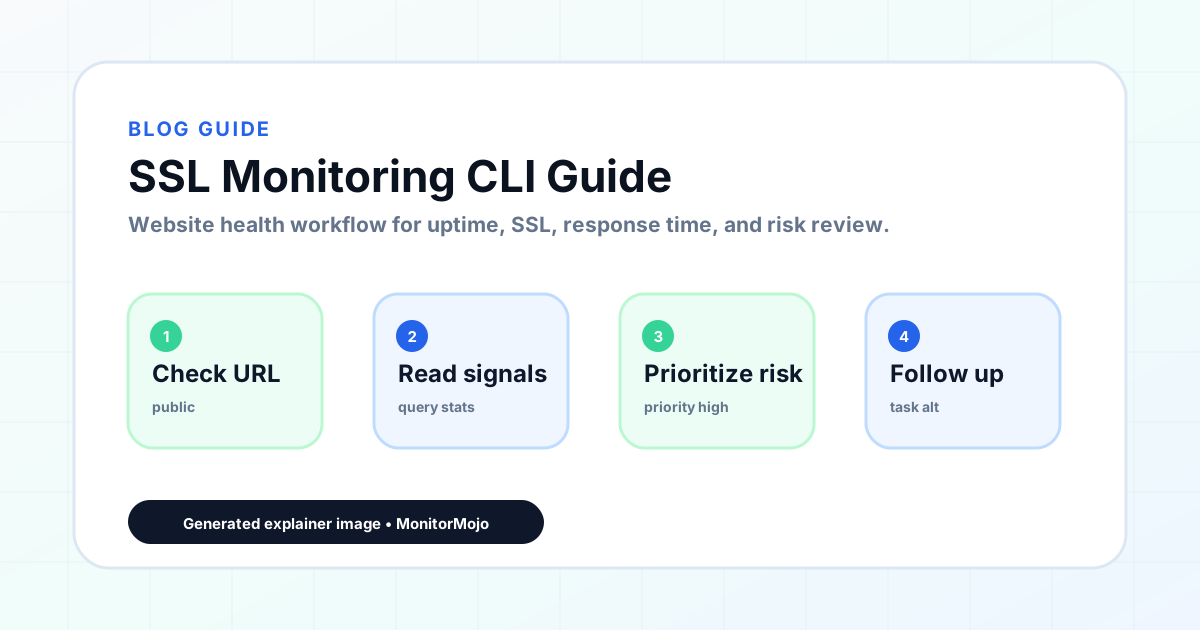
Start by listing the URLs that actually matter instead of just the homepage — for an AI agent retrieving website health context before a human reviews it, that usually means the pages tied to revenue, signups, or trust, not every page on the site.
Next, define the check types for each URL: reachability, HTTP status, HTTPS/SSL certificate status and expiry window, response time, redirect behavior, and security header presence. For API, CLI, and AI-agent workflows, document which endpoint or command runs the check and where the result is stored.
Set a cadence that matches the risk — a low-traffic page may only need a monthly look, while a page tied to revenue or signups deserves a check after every deployment and before any campaign or launch.
Record what you find with a consistent format: URL, check type, status, issue, owner, detected date, and next review date. Then say what actually happened in plain language — a check can surface a symptom, but AI-agent builders and automation teams still need to confirm the cause.
- Choose the URLs that matter most to visitors, clients, revenue, and operations.
- Run uptime, SSL, response time, and security header checks on a consistent schedule.
- Triage failed or risky checks by likely owner: hosting, DNS, SSL, code, platform, or third party.
- Record notes in a repeatable format so future reviews do not start from scratch.
- Send a plain-language summary with the issue, impact, owner, and next review date.
- Run a confirmation check after remediation so there is an external result to reference.
Checklist or template
Use this template for recurring reviews: [URL], [Check Type], [Status], [Issue], [Priority], [Owner], [Detected Date], [Resolved Date], [Next Review Date]. Add a one-line summary at the top: what changed, what needs attention, and who owns the next step.
For AI-agent builders and automation teams, group findings into the four signals that matter most: reachability, SSL status, response time, and security headers. Where nothing needs action, say the check found no issue in that area rather than implying full coverage.
- [URL]: the exact page or endpoint checked.
- [Check Type]: uptime, SSL, response time, headers, API, CLI, or agent workflow.
- [Status]: pass, review, failed, blocked, or needs human investigation.
- [Issue]: the observable symptom, not an unsupported root-cause claim.
- [Owner]: agency, developer, host, DNS provider, client, or third-party vendor.
- [Next Review Date]: when the team should confirm status again.
Common mistakes
The most common mistake is monitoring only the homepage while a checkout, signup, or booking flow silently breaks. Another is assuming SSL auto-renewal always works — it can fail quietly, and an external check is the only way to catch that before a browser warning does.
For AI-agent builders and automation teams specifically, the recurring miss is treating one clean check as proof the whole site is fine, or fixing an issue without ever writing down what happened — which means the next person repeats the same investigation from zero.
- Tracking too many low-value URLs while missing the ones that matter.
- Skipping notes after an issue is resolved.
- Reporting a status without an owner or next step attached.
- Assuming automation can resolve an incident without human review.
- Treating one clean check as proof that every risk is covered.
Practical example
Consider an AI agent retrieving website health context before a human reviews it. A scheduled check flags that a monitored endpoint is slower than its usual baseline and that a security header is missing. Instead of guessing, the team logs the observation with a timestamp, assigns an owner, and re-checks after the fix ships — turning a vague "something feels off" into a specific, closed-loop task.
How MonitorMojo helps
MonitorMojo runs website health checks that combine reachability, SSL certificate status, response time, and security header presence in one workspace, so this workflow doesn't require stitching together several separate tools.
The API and CLI make the same checks scriptable for AI-agent builders and automation teams who want them wired into an existing process, while credit-based checks keep it practical to run reviews exactly when they matter — before a client call, after a deploy, or when someone asks whether a monitored endpoint is healthy. Results still depend on hosting, DNS, and how quickly the responsible team acts on what the check finds.
Who this is for
- Developers who prefer command-line tools
- Teams automating SSL monitoring with scripts
- Anyone integrating SSL monitoring into development workflows
- Developers building custom SSL monitoring solutions
Frequently Asked Questions
How do I install the CLI?
Install the CLI globally using npm install -g @monitormojo/cli. Then configure it with your API key using monitormojo config.
How do I run an SSL check?
Use the check command with the domain you want to check: monitormojo check example.com. The CLI will check the SSL certificate and return structured data.
Can I get JSON output for scripting?
Yes. Use the --json flag to get JSON output: monitormojo check example.com --json. This makes it easy to parse the output in scripts.
How do I integrate the CLI into CI/CD?
Add CLI commands to your CI/CD pipeline. Run SSL checks before or after deployments, parse the results, and fail the pipeline if issues are detected.
How does MonitorMojo help with SSL CLI integration?
MonitorMojo provides a CLI with clear commands, structured output, and comprehensive documentation. Credit-based pricing makes it easy to scale.
Can this prevent every issue with a monitored endpoint?
No. Monitoring helps AI-agent builders and automation teams detect website health signals and organize follow-up, but it does not prevent every outage, SSL issue, slow response, or third-party failure. The result still depends on hosting, DNS, infrastructure, and how quickly the responsible team investigates and responds.