MonitorMojo Blog
SSL Monitoring Checklist: Track Certificate Health Before It Becomes a Crisis
SSL certificate expiry is one of the most preventable causes of website failure — and one of the most common. The failure happens on a fixed schedule that is known months in advance, and the warning system (renewal emails to the registrant) is fragile enough that the expiry gets missed regularly. An SSL monitoring checklist creates a systematic process for tracking certificate health so the deadline never sneaks up on you or your clients. This expanded guide explains the practical monitoring workflow behind the topic, who should use it, what to check, how to document findings, and how to turn website health signals into useful client, developer, API, CLI, or AI-agent workflows without overstating what monitoring can prove.
SSL certificate inventory
The first step in SSL monitoring is knowing what you have. For agencies managing multiple client sites, the inventory includes: the main domain and all subdomains that have their own SSL certificates, the type of certificate for each (single-domain, wildcard, multi-domain), the issuer and the expiry date, and where the certificate is managed — hosting provider, CDN, certificate authority portal, or certificate manager like Let's Encrypt.
Wildcard certificates cover all subdomains of a domain (*.example.com) with a single certificate. Multi-domain (SAN) certificates cover a specific list of domains and subdomains. Single-domain certificates cover only the exact hostname specified. Knowing which type each site uses matters when planning renewals and when troubleshooting coverage issues.
For new clients, run a health check as part of onboarding to capture the current certificate details: expiry date, issuer, hostname coverage, and whether HTTPS is active and correctly configured. This is the starting point for ongoing SSL monitoring.
- All domains and subdomains with SSL certificates documented
- Certificate type noted (single-domain, wildcard, multi-domain)
- Certificate issuer and management location noted
- Expiry date for each certificate recorded
- Auto-renewal status confirmed (is auto-renewal enabled?)
Regular certificate status checks
Once you have the inventory, the ongoing workflow is to verify that certificates are actually valid — not just that they appear in a renewal record or that auto-renewal is supposedly configured. An external health check that reads the certificate details from the live server is the most reliable way to verify current status.
Run SSL checks as part of every monthly website health review. The check should confirm: HTTPS is active, the certificate is currently valid, the certificate covers the correct hostname, and the expiry window gives sufficient lead time for renewal.
If you discover a certificate expiring within 30 days, initiate the renewal process immediately rather than waiting for the next review cycle. If it is within 14 days, it is urgent regardless of anything else on the schedule.
- Is HTTPS active and the connection secure?
- Is the certificate valid for the exact hostname being tested?
- How many days remain until expiry?
- Is the certificate from a trusted issuer?
- Does the certificate cover all subdomains currently in use?
- Has the certificate changed since the last check?
Renewal timing and thresholds
Renewal timing is where SSL monitoring most commonly fails. A certificate renewal initiated with 30 days remaining is fine. One initiated with 7 days remaining is stressful and risky — if the renewal process encounters a problem, there is no margin. One initiated after expiry is a crisis.
For Let's Encrypt certificates that renew every 90 days: the auto-renewal process typically runs when there are 30 days remaining. Monitor to confirm it completes successfully rather than assuming it ran. For commercial certificates with one to two year terms: create a calendar reminder at 60 days before expiry and another at 30 days.
When a certificate renewal completes, run a health check to confirm the new certificate is installed on the live server and correctly configured. Do not assume the renewal completed successfully without verifying the result from outside the hosting environment.
- Are renewal reminders set at 60 and 30 days before expiry?
- For Let's Encrypt: has auto-renewal completed successfully?
- For commercial certificates: has the renewal been purchased and installed?
- Has a post-renewal health check confirmed the new certificate is live?
- Has the new expiry date been updated in the client record?
Common SSL issues to watch for
Certificate installed for the wrong hostname: a common issue after migrations where the certificate is renewed for one domain but installed on a server also serving different subdomains. Symptoms: HTTPS works on the main domain but shows a certificate warning on a subdomain.
Certificate chain errors: the certificate itself may be valid but the intermediate certificate chain is not installed correctly. Symptoms: the certificate appears valid in some tools but shows warnings in others. Older browsers or mobile devices may show errors while desktop Chrome shows a padlock.
Mixed content warnings: the page loads over HTTPS but includes resources (images, scripts, stylesheets) loaded over HTTP. Symptoms: a padlock icon with a warning indicator, or in some browsers, no padlock at all even though the main content is HTTPS. Check the browser developer tools console for mixed content warnings after any major content update.
- Does the certificate cover all hostnames the site serves content on?
- Are there any certificate chain warnings in browser developer tools?
- Are all page resources (images, scripts, fonts) loading over HTTPS?
- Does the certificate resolve correctly from mobile browsers?
- After a CDN or hosting change: has the certificate been re-verified from outside the CDN?
SSL monitoring in client records
For agency use, SSL monitoring information should be recorded in client files, not just in the monitoring tool. The client record should include: current certificate expiry date, certificate type and issuer, renewal process location (where to log in to renew), and notes on any unusual certificate configuration.
When SSL is managed by the client's hosting provider with auto-renewal, document that clearly and verify the auto-renewal is actually configured — not just assumed. Hosting providers sometimes change their auto-renewal policies or systems, and what was configured a year ago may not be working the same way today.
Make SSL expiry dates visible in your client review workflow. If you use a project management tool or CRM for client records, create a recurring task 60 days before each client's SSL certificate expires. This creates a redundant reminder separate from the hosting provider's notifications.
- SSL expiry date recorded in client file
- Renewal location and process documented
- Calendar reminder set at 60 days before expiry
- Auto-renewal status documented with last verification date
- Client contact confirmed for hosting provider communications
What this workflow means
SSL Monitoring Checklist: Track Certificate Health Before It Becomes a Crisis is best understood as a repeatable website health workflow, not a promise that every outage or configuration issue will be avoided. A practical SSL certificate monitoring checklist for agencies and website managers — covering expiry tracking, renewal workflows, and how to verify certificates are correctly installed.
In practice, this workflow centers on SSL certificate status, expiry windows, renewal ownership, and post-renewal verification. Each check is planning input: it can show that the site is reachable, that a certificate has a given expiry window, that response time has shifted, or that a header is missing. It cannot prove root cause by itself or replace a human response. The value is in making the review consistent enough that site owners and small teams can spot issues before someone downstream has to ask about them.
Who should use this
This is most useful for site owners and small teams. The common thread is a small team doing a routine check before something breaks in front of a visitor, where a missed signal costs more than the few minutes it takes to check.
Beyond that primary audience, the same checks are reusable by anyone with a public-facing URL that matters to revenue, leads, or reputation: a recurring review is cheap insurance compared to hearing about the problem from a client or customer first.
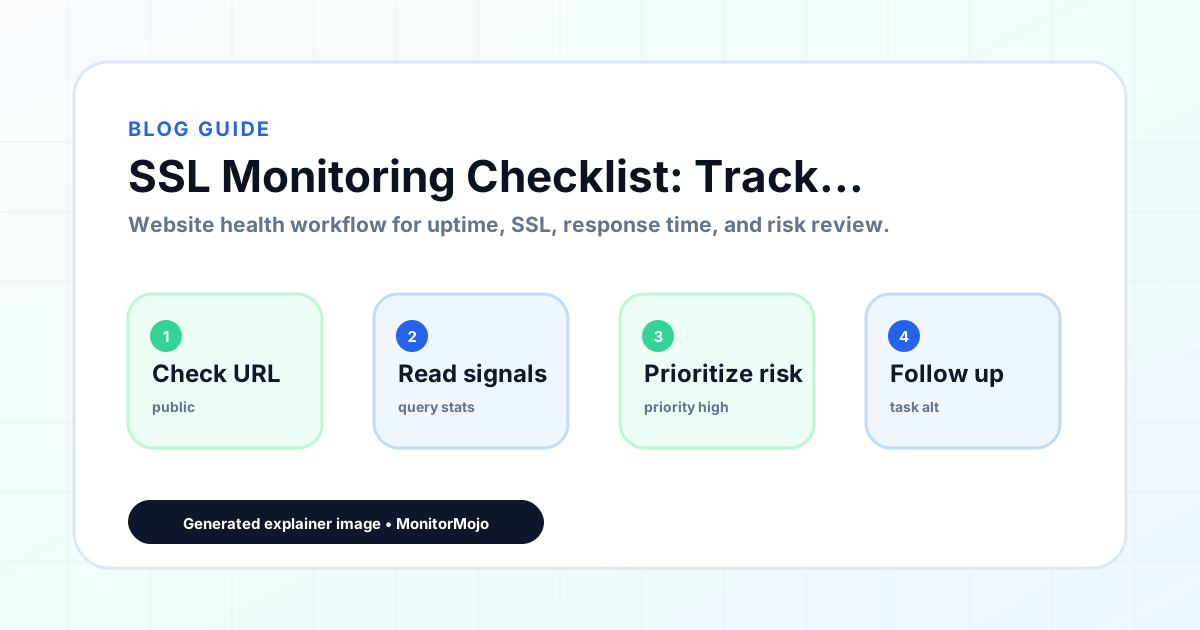
Step-by-step monitoring workflow
Start by listing the URLs that actually matter instead of just the homepage — for a small team doing a routine check before something breaks in front of a visitor, that usually means the pages tied to revenue, signups, or trust, not every page on the site.
Next, define the check types for each URL: reachability, HTTP status, HTTPS/SSL certificate status and expiry window, response time, redirect behavior, and security header presence. For API, CLI, and AI-agent workflows, document which endpoint or command runs the check and where the result is stored.
Set a cadence that matches the risk — a low-traffic page may only need a monthly look, while a page tied to revenue or signups deserves a check after every deployment and before any campaign or launch.
Record what you find with a consistent format: URL, check type, status, issue, owner, detected date, and next review date. Then say what actually happened in plain language — a check can surface a symptom, but site owners and small teams still need to confirm the cause.
- Choose the URLs that matter most to visitors, clients, revenue, and operations.
- Run uptime, SSL, response time, and security header checks on a consistent schedule.
- Triage failed or risky checks by likely owner: hosting, DNS, SSL, code, platform, or third party.
- Record notes in a repeatable format so future reviews do not start from scratch.
- Send a plain-language summary with the issue, impact, owner, and next review date.
- Run a confirmation check after remediation so there is an external result to reference.
Checklist or template
Use this template for recurring reviews: [URL], [Check Type], [Status], [Issue], [Priority], [Owner], [Detected Date], [Resolved Date], [Next Review Date]. Add a one-line summary at the top: what changed, what needs attention, and who owns the next step.
For site owners and small teams, group findings into the four signals that matter most: reachability, SSL status, response time, and security headers. Where nothing needs action, say the check found no issue in that area rather than implying full coverage.
- [URL]: the exact page or endpoint checked.
- [Check Type]: uptime, SSL, response time, headers, API, CLI, or agent workflow.
- [Status]: pass, review, failed, blocked, or needs human investigation.
- [Issue]: the observable symptom, not an unsupported root-cause claim.
- [Owner]: agency, developer, host, DNS provider, client, or third-party vendor.
- [Next Review Date]: when the team should confirm status again.
Common mistakes
The most common mistake is monitoring only the homepage while a checkout, signup, or booking flow silently breaks. Another is assuming SSL auto-renewal always works — it can fail quietly, and an external check is the only way to catch that before a browser warning does.
For site owners and small teams specifically, the recurring miss is treating one clean check as proof the whole site is fine, or fixing an issue without ever writing down what happened — which means the next person repeats the same investigation from zero.
- Tracking too many low-value URLs while missing the ones that matter.
- Skipping notes after an issue is resolved.
- Reporting a status without an owner or next step attached.
- Assuming automation can resolve an incident without human review.
- Treating one clean check as proof that every risk is covered.
Practical example
Consider a small team doing a routine check before something breaks in front of a visitor. A scheduled check flags that the site is slower than its usual baseline and that a security header is missing. Instead of guessing, the team logs the observation with a timestamp, assigns an owner, and re-checks after the fix ships — turning a vague "something feels off" into a specific, closed-loop task.
How MonitorMojo helps
MonitorMojo runs website health checks that combine reachability, SSL certificate status, response time, and security header presence in one workspace, so this workflow doesn't require stitching together several separate tools.
The API and CLI make the same checks scriptable for site owners and small teams who want them wired into an existing process, while credit-based checks keep it practical to run reviews exactly when they matter — before a client call, after a deploy, or when someone asks whether the site is healthy. Results still depend on hosting, DNS, and how quickly the responsible team acts on what the check finds.
Frequently Asked Questions
How often should I check SSL certificate status?
Including SSL status in every monthly website health check ensures you see the expiry window in advance. For sites with certificates expiring within 60 days, increase to weekly checks until the renewal is confirmed complete. After any hosting migration or CDN change, run an immediate SSL check.
What is the difference between an SSL certificate and HTTPS?
An SSL certificate is the digital credential that enables HTTPS — the encrypted, trusted connection between browser and server. HTTPS is the result of having a valid SSL certificate installed and configured correctly. You need a valid SSL certificate to serve HTTPS; without one (or with an expired one), browsers show a security warning.
Can auto-renewal fail on managed hosting?
Yes. Auto-renewal failures happen for several reasons: the domain configuration changed in a way that breaks the verification process, the hosting account has a billing issue, or the hosting provider's renewal system encounters a technical problem. Always verify that auto-renewal actually completed rather than assuming it did.
What happens to email when a domain's SSL expires?
Email is not directly affected by SSL certificate expiry unless the mail server also uses the same certificate. However, if the domain registration (not the SSL certificate) expires, both the website and email stop working simultaneously because DNS stops resolving the domain.
How do I check SSL certificate details without a monitoring tool?
In most browsers, click the padlock icon in the address bar and look for certificate details. In Chrome, go to padlock > Certificate > Details tab. This shows the certificate issuer, expiry date, and the domains it covers. For an external check that does not depend on your browser's cache, use a dedicated health check tool like MonitorMojo.
Can this prevent every issue with the site?
No. Monitoring helps site owners and small teams detect website health signals and organize follow-up, but it does not prevent every outage, SSL issue, slow response, or third-party failure. The result still depends on hosting, DNS, infrastructure, and how quickly the responsible team investigates and responds.