MonitorMojo Blog
How to Build a Website Monitoring Calendar
A monitoring calendar is simply the answer to "what gets checked, and when" written down somewhere concrete — a calendar app, a recurring task list, or a scheduled script. Without one, monitoring happens whenever someone remembers, which means it mostly doesn't happen. This guide is focused narrowly on the schedule itself: what cadence to use for what kind of check, and how to turn that into something that actually runs. This expanded guide explains the practical monitoring workflow behind the topic, who should use it, what to check, how to document findings, and how to turn website health signals into useful client, developer, API, CLI, or AI-agent workflows without overstating what monitoring can prove.
The Cadence, Concretely
Different checks warrant different frequencies based on how fast they can go wrong and how much it costs to check them.
- Daily (for high-priority or high-traffic sites only): a quick reachability check, especially around and after any deploys
- Weekly (all sites): reachability, response time glance, SSL days-remaining — the full weekly review checklist
- Monthly (all sites): trend review across the month's checks, recurring issue review
- Quarterly (client sites on a reporting retainer): full report with recommendations
- Ad hoc: immediately after any deploy, DNS change, or hosting migration, regardless of where that falls in the regular calendar
Putting Dates on the Calendar
Beyond the recurring cadence, a monitoring calendar should also hold specific dated entries — known SSL renewal dates once you have them, a client's planned high-traffic event (a sale, a launch), or a scheduled hosting migration. These one-off entries are what a purely recurring schedule misses, and they're often the moments where extra attention matters most.
A simple way to keep this manageable is a single shared calendar (rather than one per client) with recurring entries for the standing cadence and one-off entries added as they come up — checking one place is easier than checking a dozen separate client-specific schedules.
Color-coding or tagging entries by tier or client can make a shared calendar much faster to scan once it holds more than a handful of sites — being able to filter to "today's Tier A checks" at a glance saves real time over reading through a long undifferentiated list every morning.
Matching Frequency to Site Priority
Not every site needs the same cadence. A high-traffic ecommerce client or a site that has had recent issues justifies daily checks; a low-traffic brochure site that rarely changes may only need the standard weekly pass. Building this tiering into the calendar upfront avoids either under-checking important sites or wasting checks on ones that don't need the attention.
Reserve daily checks for sites where they earn their cost — running them everywhere regardless of actual risk burns credits and attention without adding much value on a site that hasn't changed in months.
A simple three-tier priority system works well: Tier A (high traffic, revenue-generating, or recently unstable) gets daily checks; Tier B (standard active client sites) gets the weekly baseline; Tier C (low-activity or rarely-changing sites) can sometimes stretch to a biweekly or monthly reachability check if resources are tight, as long as SSL expiry is still tracked on a schedule that won't let a certificate lapse unnoticed.
Revisit a site's tier periodically rather than assuming it's fixed forever — a Tier C site that gets a sudden traffic spike from a marketing push, or a Tier A site that's been stable and low-priority for a client that's since scaled back, both warrant moving to a different tier that matches their current reality rather than their history.
Turning the Schedule Into Something That Runs
A calendar only works if it triggers action without relying on someone remembering. For manual weekly and monthly reviews, recurring calendar events with the checklist attached (or linked to a shared doc) work well for small teams. For daily or frequent checks across many sites, a scheduled script calling the MonitorMojo API or CLI is more reliable than a human remembering to click a button every morning.
Whichever mechanism you use, build in a fallback: if a scheduled script fails silently, nobody notices until something worse happens. A simple weekly glance to confirm the automated checks actually ran is worth the few minutes it takes.
Fitting the Calendar Around Client Work
Deploy schedules, content updates, and marketing campaigns all affect when extra checks are worth running outside the standard calendar. A client planning a big campaign launch or a major redesign deploy is a good candidate for a temporary bump to daily checks around that event, reverting to the normal cadence once things have settled.
Building this flexibility into the calendar from the start — rather than treating the schedule as fixed and permanent — makes it easier to justify the extra attention during genuinely higher-risk periods without having to redesign the whole system each time.
Common Mistakes
Setting an overly ambitious calendar — daily checks on every site — that nobody actually keeps up with is worse than a modest schedule that's followed consistently. Start smaller and expand once the habit is established.
Not linking the calendar to what actually needs to happen at each cadence turns it into just a reminder to "check the site" with no clear checklist, which produces inconsistent results depending on who's doing it that day.
Forgetting ad hoc checks after deploys or DNS changes is a common gap — these events are actually more likely to cause an issue than any random day covered by the regular calendar.
Building the calendar once and never revisiting it means it drifts out of sync with which sites are actually active clients, which have grown more complex, or which have had recent problems.
How MonitorMojo Helps
Because MonitorMojo checks are on-demand and credit-based rather than running on their own schedule, the calendar you build is exactly what determines how often each site actually gets checked — there's no default cadence to rely on, which makes building this schedule deliberately worth the effort.
The API and CLI let you turn the daily and weekly tiers of the calendar into scripted, scheduled jobs rather than manual dashboard clicks, while quarterly and one-off deeper checks can stay manual through the dashboard.
Check history gives you a record of whether the calendar is actually being followed — a gap in check history for a site is a visible sign that a scheduled check didn't run or was skipped.
What this workflow means
How to Build a Website Monitoring Calendar is best understood as a repeatable website health workflow, not a promise that every outage or configuration issue will be avoided. A concrete cadence for what to check daily, weekly, monthly, and quarterly across a portfolio of sites, and how to actually build it into a calendar you'll follow.
In practice, this workflow centers on uptime, SSL certificates, response time, security headers, website health summaries, and monthly review notes. Each check is planning input: it can show that the site is reachable, that a certificate has a given expiry window, that response time has shifted, or that a header is missing. It cannot prove root cause by itself or replace a human response. The value is in making the review consistent enough that site owners and small teams can spot issues before someone downstream has to ask about them.
Who should use this
This is most useful for site owners and small teams. Agencies managing a portfolio of sites with different priority levels
Beyond that primary audience, the same checks are reusable by anyone with a public-facing URL that matters to revenue, leads, or reputation: a recurring review is cheap insurance compared to hearing about the problem from a client or customer first.
Step-by-step monitoring workflow
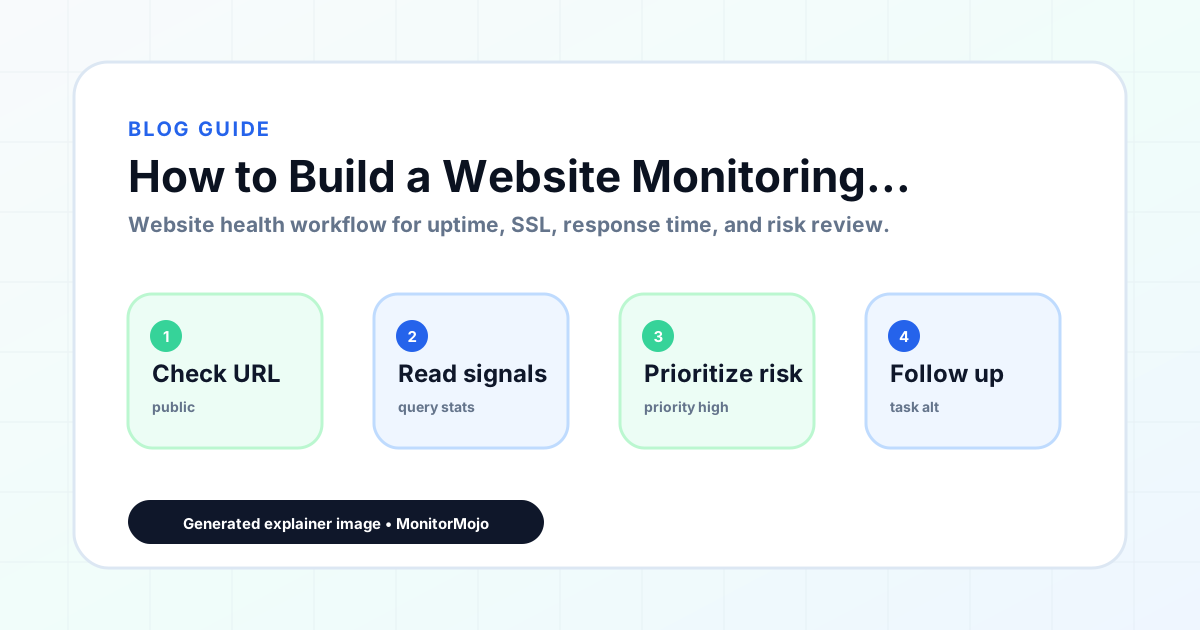
Start by listing the URLs that actually matter instead of just the homepage — for a small team doing a routine check before something breaks in front of a visitor, that usually means the pages tied to revenue, signups, or trust, not every page on the site.
Next, define the check types for each URL: reachability, HTTP status, HTTPS/SSL certificate status and expiry window, response time, redirect behavior, and security header presence. For API, CLI, and AI-agent workflows, document which endpoint or command runs the check and where the result is stored.
Set a cadence that matches the risk — a low-traffic page may only need a monthly look, while a page tied to revenue or signups deserves a check after every deployment and before any campaign or launch.
Record what you find with a consistent format: URL, check type, status, issue, owner, detected date, and next review date. Then say what actually happened in plain language — a check can surface a symptom, but site owners and small teams still need to confirm the cause.
- Choose the URLs that matter most to visitors, clients, revenue, and operations.
- Run uptime, SSL, response time, and security header checks on a consistent schedule.
- Triage failed or risky checks by likely owner: hosting, DNS, SSL, code, platform, or third party.
- Record notes in a repeatable format so future reviews do not start from scratch.
- Send a plain-language summary with the issue, impact, owner, and next review date.
- Run a confirmation check after remediation so there is an external result to reference.
Checklist or template
Use this template for recurring reviews: [URL], [Check Type], [Status], [Issue], [Priority], [Owner], [Detected Date], [Resolved Date], [Next Review Date]. Add a one-line summary at the top: what changed, what needs attention, and who owns the next step.
For site owners and small teams, group findings into the four signals that matter most: reachability, SSL status, response time, and security headers. Where nothing needs action, say the check found no issue in that area rather than implying full coverage.
- [URL]: the exact page or endpoint checked.
- [Check Type]: uptime, SSL, response time, headers, API, CLI, or agent workflow.
- [Status]: pass, review, failed, blocked, or needs human investigation.
- [Issue]: the observable symptom, not an unsupported root-cause claim.
- [Owner]: agency, developer, host, DNS provider, client, or third-party vendor.
- [Next Review Date]: when the team should confirm status again.
Common mistakes
The most common mistake is monitoring only the homepage while a checkout, signup, or booking flow silently breaks. Another is assuming SSL auto-renewal always works — it can fail quietly, and an external check is the only way to catch that before a browser warning does.
For site owners and small teams specifically, the recurring miss is treating one clean check as proof the whole site is fine, or fixing an issue without ever writing down what happened — which means the next person repeats the same investigation from zero.
- Tracking too many low-value URLs while missing the ones that matter.
- Skipping notes after an issue is resolved.
- Reporting a status without an owner or next step attached.
- Assuming automation can resolve an incident without human review.
- Treating one clean check as proof that every risk is covered.
Practical example
Consider a small team doing a routine check before something breaks in front of a visitor. A scheduled check flags that the site is slower than its usual baseline and that a security header is missing. Instead of guessing, the team logs the observation with a timestamp, assigns an owner, and re-checks after the fix ships — turning a vague "something feels off" into a specific, closed-loop task.
How MonitorMojo helps
MonitorMojo runs website health checks that combine reachability, SSL certificate status, response time, and security header presence in one workspace, so this workflow doesn't require stitching together several separate tools.
The API and CLI make the same checks scriptable for site owners and small teams who want them wired into an existing process, while credit-based checks keep it practical to run reviews exactly when they matter — before a client call, after a deploy, or when someone asks whether the site is healthy. Results still depend on hosting, DNS, and how quickly the responsible team acts on what the check finds.
Who this is for
- Agencies managing a portfolio of sites with different priority levels
- Freelancers who want a concrete schedule instead of checking sites reactively
- Anyone setting up scheduled scripts against the MonitorMojo API or CLI
- Teams tiering monitoring frequency by client size or site risk
Frequently Asked Questions
How often should I check a typical client site?
Weekly is a reasonable baseline for most sites, with monthly trend reviews and quarterly reports layered on top. High-priority or high-traffic sites can justify daily reachability checks; low-activity sites may need less.
Does MonitorMojo run checks on this calendar automatically?
No. MonitorMojo runs checks on demand, whether through the dashboard, API, or CLI. The calendar and its cadence are something you build using your own scheduling tools or scripts — MonitorMojo does not have built-in scheduled or recurring checks.
Should every site have the same monitoring calendar?
No. Tier the cadence by site priority — a high-traffic or historically unstable site deserves more frequent checks than a low-traffic site that rarely changes.
What's the difference between this and a monitoring operating system?
This calendar is just the schedule — what gets checked and when. An operating system is the broader process around it: who's responsible, what tools are used, and how findings get documented and acted on.
Does having a monitoring calendar guarantee issues get caught in time?
No. A calendar improves the odds of catching problems between scheduled checks, but anything that starts and resolves between two checks can still be missed, and no schedule guarantees uptime or prevents issues from occurring.
Can this prevent every issue with the site?
No. Monitoring helps site owners and small teams detect website health signals and organize follow-up, but it does not prevent every outage, SSL issue, slow response, or third-party failure. The result still depends on hosting, DNS, infrastructure, and how quickly the responsible team investigates and responds.