MonitorMojo Blog
WordPress Maintenance Monitoring Workflow
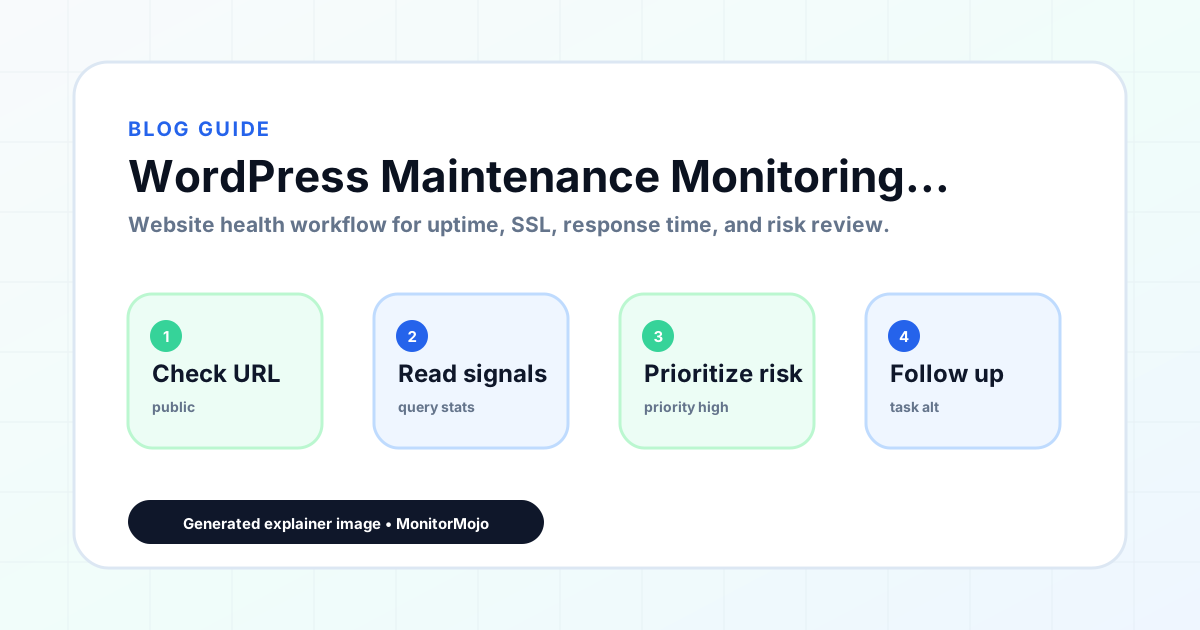
WordPress sites have specific monitoring challenges: plugin updates can introduce conflicts, SSL certificates can break after theme changes, and the admin dashboard may report the site as working while visitors encounter errors. This guide walks through building a WordPress-specific maintenance monitoring workflow. This expanded guide explains the practical monitoring workflow behind the topic, who should use it, what to check, how to document findings, and how to turn website health signals into useful client, developer, API, CLI, or AI-agent workflows without overstating what monitoring can prove.
Why WordPress sites need external monitoring
WordPress sites often have internal health indicators that can be misleading. The admin dashboard may show the site as functioning normally while a plugin conflict causes a white screen of death for visitors. The hosting provider's monitoring may report the server as healthy while WordPress is returning PHP errors.
External monitoring checks the site from outside the hosting environment, which is how visitors actually access it. This catches issues that internal monitoring misses: DNS propagation problems, CDN misconfigurations, SSL certificate issues that only affect external connections, and regional accessibility problems.
The WordPress ecosystem introduces dependencies that can fail independently of the core platform. A CDN serving theme assets may go down while WordPress itself is running fine. A third-party API that a plugin depends on may become unavailable. External monitoring catches these dependency failures.
Step 1: Identify key pages to monitor
The homepage is the obvious starting point, but it is rarely the only page that matters. For most WordPress sites, the pages that drive business value — the contact form, the checkout page (for WooCommerce), the booking flow, the login page — are at least as important as the homepage.
Make a list of every URL that matters to the client's business. For a typical business WordPress site, this includes the homepage, contact page, any service pages that generate leads, and any pages that receive paid traffic. For WooCommerce sites, add product pages and the checkout flow.
Each page should be checked as a separate URL because WordPress can render different pages differently, and a plugin conflict may affect only certain page types.
Step 2: Run checks after every update
WordPress core, plugins, and themes release updates frequently, and many WordPress sites have auto-updates enabled. Plugin conflicts are one of the most common causes of WordPress site issues. A site that has been running smoothly for months can break immediately after a plugin auto-update runs.
Run a comprehensive health check after every update — plugin, theme, or WordPress core. The check should verify reachability, SSL certificate validity, response time, redirect behavior, security headers, and domain risk.
If the check fails after an update, the timing gives a strong signal that the update caused the issue. This helps narrow down troubleshooting. Reverting the most recent update is the fastest way to restore the site.
For sites with auto-updates enabled, run daily health checks to catch issues introduced by automatic updates. The shorter the gap between the update and detection, the faster the issue can be rolled back.
Step 3: Track SSL and security headers
SSL certificates on WordPress sites can break in several ways related to platform updates. A theme update that changes how the site handles URLs may introduce mixed content issues. A hosting migration may change the server configuration in ways that affect SSL certificate installation.
Include SSL status in every health check. Monitor the certificate expiry date and set renewal reminders 45-60 days before expiry. Verify SSL after every migration or hosting change.
Security headers on WordPress sites are often handled by plugins. An update or conflict can remove these headers without the site owner noticing. Include security header checks in your regular health check workflow.
After every WordPress update, verify that security headers are still present. If they have disappeared, check whether a plugin update or conflict has affected the header configuration.
Step 4: Monitor response time trends
WordPress sites on shared hosting often experience gradual response time degradation as the site grows, more plugins are added, or the database accumulates content. A site that normally responds in 500ms and gradually degrades to four seconds is delivering a poor visitor experience long before it triggers a downtime alert.
Track response time over weeks and months. Compare current response times to baseline values. If response time has degraded significantly, investigate with the hosting provider — shared hosting resource contention is a common cause.
After adding new plugins, check response time to identify plugins that introduce significant performance overhead. Not all plugins are equal in their performance impact.
Response time trends help identify when the site has outgrown its hosting plan or when a plugin is introducing performance overhead. This information is valuable for making hosting and plugin decisions.
Common WordPress monitoring mistakes
Relying only on WordPress plugins for monitoring is a common mistake. Monitoring plugins run on the same hosting infrastructure as the site. If the server is down or a plugin conflict breaks the front end, the monitoring plugin may not detect the issue.
Only checking the homepage is another mistake. WordPress renders different page types using different template files. A theme update may break one template while leaving others functional.
Not monitoring after updates is a third mistake. WordPress updates are the most common trigger for site issues. Running a health check after every update provides fast detection.
Ignoring response time until the site becomes completely unresponsive is a fourth mistake. Tracking response time trends helps identify when the site has outgrown its hosting plan.
How MonitorMojo helps with WordPress monitoring
MonitorMojo checks WordPress sites from outside the hosting environment, which is what visitors actually experience. Each health check covers reachability, SSL certificate validity and expiry, server response time, HTTP redirect behavior, security header presence, and domain risk notes.
The credit-based pricing model is practical for WordPress site owners who want to run regular checks without committing to expensive monitoring subscriptions. Checks can be run daily for routine monitoring, immediately after any update, and on an on-demand basis.
Multi-site support is useful for WordPress professionals who manage multiple client sites. All sites can be monitored from one dashboard. The results depend on hosting, DNS, infrastructure, configuration, traffic, and response process.
What this workflow means
WordPress Maintenance Monitoring Workflow is best understood as a repeatable website health workflow, not a promise that every outage or configuration issue will be avoided. Learn how to build a WordPress maintenance monitoring workflow covering plugin updates, SSL tracking, post-update checks, and client reporting for WordPress sites.
In practice, this workflow centers on uptime, SSL certificates, response time, security headers, website health summaries, and monthly review notes. Each check is planning input: it can show that a WordPress client site is reachable, that a certificate has a given expiry window, that response time has shifted, or that a header is missing. It cannot prove root cause by itself or replace a human response. The value is in making the review consistent enough that WordPress maintenance providers can spot issues before someone downstream has to ask about them.
Who should use this
This is most useful for WordPress maintenance providers. WordPress maintenance providers managing client sites
Beyond that primary audience, the same checks are reusable by anyone with a public-facing URL that matters to revenue, leads, or reputation: a recurring review is cheap insurance compared to hearing about the problem from a client or customer first.
Step-by-step monitoring workflow
Start by listing the URLs that actually matter instead of just the homepage — for a WordPress care-plan provider reviewing client sites after a plugin update, that usually means the pages tied to revenue, signups, or trust, not every page on the site.
Next, define the check types for each URL: reachability, HTTP status, HTTPS/SSL certificate status and expiry window, response time, redirect behavior, and security header presence. For API, CLI, and AI-agent workflows, document which endpoint or command runs the check and where the result is stored.
Set a cadence that matches the risk — a low-traffic page may only need a monthly look, while a page tied to revenue or signups deserves a check after every deployment and before any campaign or launch.
Record what you find with a consistent format: URL, check type, status, issue, owner, detected date, and next review date. Then say what actually happened in plain language — a check can surface a symptom, but WordPress maintenance providers still need to confirm the cause.
- Choose the URLs that matter most to visitors, clients, revenue, and operations.
- Run uptime, SSL, response time, and security header checks on a consistent schedule.
- Triage failed or risky checks by likely owner: hosting, DNS, SSL, code, platform, or third party.
- Record notes in a repeatable format so future reviews do not start from scratch.
- Send a plain-language summary with the issue, impact, owner, and next review date.
- Run a confirmation check after remediation so there is an external result to reference.
Checklist or template
Use this template for recurring reviews: [URL], [Check Type], [Status], [Issue], [Priority], [Owner], [Detected Date], [Resolved Date], [Next Review Date]. Add a one-line summary at the top: what changed, what needs attention, and who owns the next step.
For WordPress maintenance providers, group findings into the four signals that matter most: reachability, SSL status, response time, and security headers. Where nothing needs action, say the check found no issue in that area rather than implying full coverage.
- [URL]: the exact page or endpoint checked.
- [Check Type]: uptime, SSL, response time, headers, API, CLI, or agent workflow.
- [Status]: pass, review, failed, blocked, or needs human investigation.
- [Issue]: the observable symptom, not an unsupported root-cause claim.
- [Owner]: agency, developer, host, DNS provider, client, or third-party vendor.
- [Next Review Date]: when the team should confirm status again.
Common mistakes
The most common mistake is monitoring only the homepage while a checkout, signup, or booking flow silently breaks. Another is assuming SSL auto-renewal always works — it can fail quietly, and an external check is the only way to catch that before a browser warning does.
For WordPress maintenance providers specifically, the recurring miss is treating one clean check as proof the whole site is fine, or fixing an issue without ever writing down what happened — which means the next person repeats the same investigation from zero.
- Tracking too many low-value URLs while missing the ones that matter.
- Skipping notes after an issue is resolved.
- Reporting a status without an owner or next step attached.
- Assuming automation can resolve an incident without human review.
- Treating one clean check as proof that every risk is covered.
Practical example
Consider a WordPress care-plan provider reviewing client sites after a plugin update. A scheduled check flags that a WordPress client site is slower than its usual baseline and that a security header is missing. Instead of guessing, the team logs the observation with a timestamp, assigns an owner, and re-checks after the fix ships — turning a vague "something feels off" into a specific, closed-loop task.
How MonitorMojo helps
MonitorMojo runs website health checks that combine reachability, SSL certificate status, response time, and security header presence in one workspace, so this workflow doesn't require stitching together several separate tools.
The API and CLI make the same checks scriptable for WordPress maintenance providers who want them wired into an existing process, while credit-based checks keep it practical to run reviews exactly when they matter — before a client call, after a deploy, or when someone asks whether a WordPress client site is healthy. Results still depend on hosting, DNS, and how quickly the responsible team acts on what the check finds.
Who this is for
- WordPress maintenance providers managing client sites
- Agencies delivering WordPress care plans
- WordPress developers monitoring production sites
- Site owners on shared WordPress hosting
Frequently Asked Questions
Do I need external monitoring if I have a WordPress monitoring plugin?
WordPress monitoring plugins run on the same hosting infrastructure. If the server is down or a plugin conflict breaks the front end, the plugin may not detect the issue. External monitoring catches these problems.
How often should I run checks on WordPress sites?
Daily checks provide reasonable coverage for detecting issues from automatic updates. Run an additional check immediately after any manual update.
Can MonitorMojo detect plugin conflict issues?
MonitorMojo detects the visitor-facing effects of plugin conflicts: site unreachability, broken pages, SSL issues, and response time degradation. It does not diagnose the specific plugin causing the issue.
What should I do if a check fails after an update?
If the site fails a check immediately after an update, the update is the likely cause. Reverting the most recent update is the fastest way to restore the site.
Does MonitorMojo work with managed WordPress hosting?
MonitorMojo works with any WordPress site regardless of hosting provider. It checks from outside the hosting environment, providing an independent view of site health.
Can this prevent every issue with a WordPress client site?
No. Monitoring helps WordPress maintenance providers detect website health signals and organize follow-up, but it does not prevent every outage, SSL issue, slow response, or third-party failure. The result still depends on hosting, DNS, infrastructure, and how quickly the responsible team investigates and responds.