MonitorMojo Blog
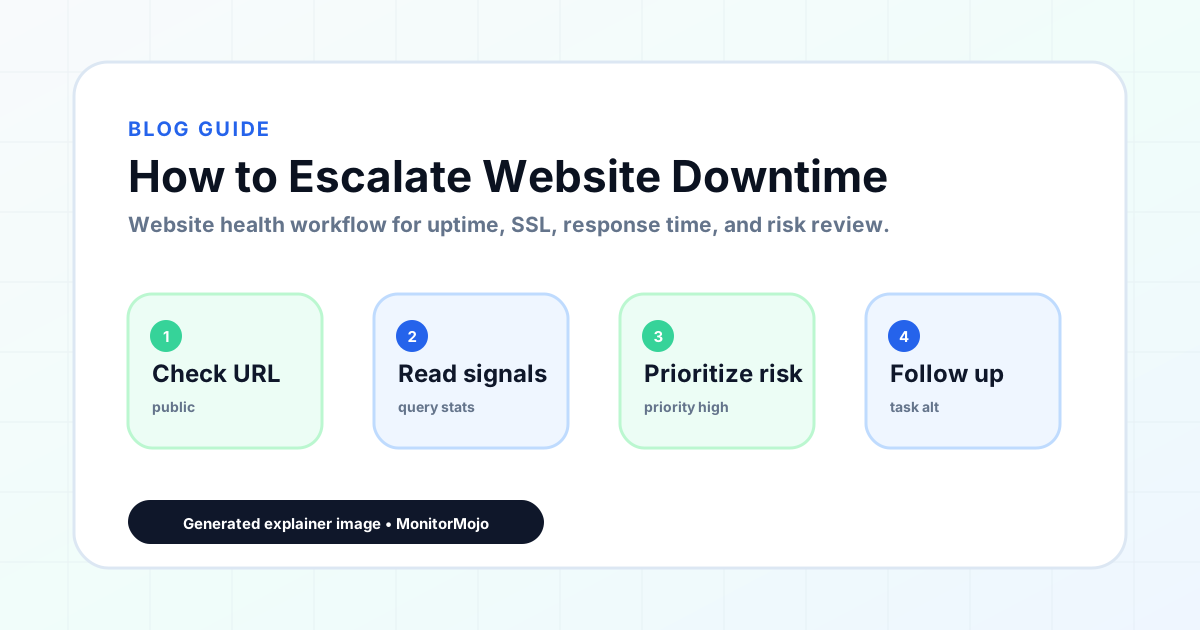
How to Escalate Website Downtime
Escalation is an internal decision: once triage confirms something is genuinely wrong, who else needs to know, and how fast? Escalate too slowly and a fixable problem drags on longer than it should. Escalate everything immediately and the team stops trusting escalation messages. This guide covers escalation tiers, time-based rules for moving up a tier, and what to include so the next person doesn't have to start from scratch. This expanded guide explains the practical monitoring workflow behind the topic, who should use it, what to check, how to document findings, and how to turn website health signals into useful client, developer, API, CLI, or AI-agent workflows without overstating what monitoring can prove.
Escalation vs. Triage: Where One Ends and the Other Begins
Triage answers "is this real and how bad is it." Escalation answers "who else needs to be involved, and when." A confirmed Critical issue from triage doesn't automatically mean paging the agency owner — it means starting at the first escalation tier and moving up only if it isn't resolved in a reasonable window.
Escalation is purely internal. It happens before, and separately from, any client notification — you want the right people working the problem before you decide what, if anything, to tell the client about it.
It's worth deciding in advance whether escalation and client notification can happen in parallel for the most severe cases. For a full site outage, waiting for Tier 3 to be looped in technically before anyone tells the client can cost you thirty minutes of silence that the client experiences as being ignored — many teams choose to send a brief "we're aware and investigating" client message the moment triage confirms Critical severity, independent of where the internal escalation stands.
Escalation Tiers
A simple three-tier structure works for most small agencies and teams without a dedicated on-call rotation.
- Tier 1 — whoever is on point for the site (often the developer who built or last touched it)
- Tier 2 — a technical lead or senior developer who can take over if Tier 1 can't resolve it or isn't available
- Tier 3 — the account manager or agency owner, brought in when the issue is taking a long time to resolve or when client communication decisions are needed
Time-Based Escalation Rules
Attach a rough time limit to each tier so escalation doesn't depend on someone remembering to ask for help. For a Critical issue (site fully down), a common pattern is: if Tier 1 hasn't made progress in 15 minutes, loop in Tier 2; if the issue is still unresolved after 45–60 minutes, bring in Tier 3 regardless of technical progress, because a client conversation is probably now overdue.
High-severity issues (like an expired SSL certificate) can run on a longer clock — an hour to Tier 2, a few hours to Tier 3 — since they're serious but rarely need the same urgency as a full outage. Medium and Low severity items usually don't need formal escalation at all; they get handled and logged by whoever found them.
It also helps to account for business hours versus off-hours in your time limits. A Critical issue at 2pm on a weekday can reasonably expect a 15-minute response; the same issue at 2am may realistically take longer to reach a person, and building that into the plan avoids treating a slower off-hours response as a process failure when it's really just a staffing reality.
These numbers are a starting point, not a rule to copy exactly — set them based on your team's actual response capacity and adjust after a real incident shows the timing was off.
Time-based rules also need an exception for progress. If Tier 1 is actively making headway — they've identified the cause and are mid-fix — a rigid clock that forces escalation anyway can be more disruptive than helpful. Build in a simple override: escalate on schedule unless the person working it explicitly reports concrete progress and a near-term resolution.
What to Include in an Escalation Message
An escalation message should let the next person act without re-doing the triage work that's already been done.
- Site and what's affected (homepage, checkout, a specific subdomain)
- What was checked and what the result was (status code, timeout, SSL error)
- When it was first noticed and whether it's been confirmed with a second check
- What's been tried already, if anything
- Current severity level and why
- What you need from the person you're escalating to
Handling Escalations Without a Formal On-Call Rotation
Many small agencies don't have a formal on-call schedule, and that's fine — the tier structure still works, it just runs on whoever's reachable rather than a rotation. What matters is that everyone knows who Tier 2 and Tier 3 are for a given client at any given time, even informally, so "who do I call" isn't a question that has to be answered from scratch during an incident.
A simple shared list mapping each client site to its Tier 1, Tier 2, and Tier 3 contacts — updated whenever staffing changes — removes most of the ambiguity a formal on-call system would otherwise solve, without the overhead of building one.
Common Escalation Mistakes
Escalating without confirming the issue first wastes a senior person's time on something that might resolve itself on a second check — triage should always come before escalation, not get skipped under pressure.
Vague escalation messages ("site's down, can you look") force the next person to repeat work that's already been done. Include what was checked, not just that something's wrong.
No defined time limits means escalation depends entirely on someone's judgment in the moment, which is inconsistent under stress. Written time-based rules take that decision out of the heat of an incident.
Skipping straight to the owner for every issue burns out the person at the top of the chain and defeats the point of having tiers at all.
Treating the tier structure as fixed regardless of who's actually available is a last common issue — if Tier 2's usual person is on vacation, the plan needs a named backup, not a gap that gets discovered mid-incident.
How MonitorMojo Helps
Whoever picks up an escalated issue can immediately re-run a MonitorMojo check to get a fresh, independent read on the site rather than relying on a secondhand description of what someone else saw.
Check history gives the person you're escalating to context in seconds — they can see prior checks for that site and judge whether this is a new problem or a recurring one without waiting on a full handoff conversation.
Because checks are on-demand via the dashboard, API, or CLI, anyone in your escalation chain can pull the same data at any point in the incident without needing special access to a live monitoring system.
What this workflow means
How to Escalate Website Downtime is best understood as a repeatable website health workflow, not a promise that every outage or configuration issue will be avoided. How to decide when a confirmed website problem needs to go beyond the person who first spotted it, with escalation tiers, time-based rules, and what an escalation message should include.
In practice, this workflow centers on reachability, HTTP status, downtime triage, stakeholder updates, and confirmation checks. Each check is planning input: it can show that the site is reachable, that a certificate has a given expiry window, that response time has shifted, or that a header is missing. It cannot prove root cause by itself or replace a human response. The value is in making the review consistent enough that site owners and small teams can spot issues before someone downstream has to ask about them.
Who should use this
This is most useful for site owners and small teams. Agencies with more than one tier of technical staff
Beyond that primary audience, the same checks are reusable by anyone with a public-facing URL that matters to revenue, leads, or reputation: a recurring review is cheap insurance compared to hearing about the problem from a client or customer first.
Step-by-step monitoring workflow
Start by listing the URLs that actually matter instead of just the homepage — for a small team doing a routine check before something breaks in front of a visitor, that usually means the pages tied to revenue, signups, or trust, not every page on the site.
Next, define the check types for each URL: reachability, HTTP status, HTTPS/SSL certificate status and expiry window, response time, redirect behavior, and security header presence. For API, CLI, and AI-agent workflows, document which endpoint or command runs the check and where the result is stored.
Set a cadence that matches the risk — a low-traffic page may only need a monthly look, while a page tied to revenue or signups deserves a check after every deployment and before any campaign or launch.
Record what you find with a consistent format: URL, check type, status, issue, owner, detected date, and next review date. Then say what actually happened in plain language — a check can surface a symptom, but site owners and small teams still need to confirm the cause.
- Choose the URLs that matter most to visitors, clients, revenue, and operations.
- Run uptime, SSL, response time, and security header checks on a consistent schedule.
- Triage failed or risky checks by likely owner: hosting, DNS, SSL, code, platform, or third party.
- Record notes in a repeatable format so future reviews do not start from scratch.
- Send a plain-language summary with the issue, impact, owner, and next review date.
- Run a confirmation check after remediation so there is an external result to reference.
Checklist or template
Use this template for recurring reviews: [URL], [Check Type], [Status], [Issue], [Priority], [Owner], [Detected Date], [Resolved Date], [Next Review Date]. Add a one-line summary at the top: what changed, what needs attention, and who owns the next step.
For site owners and small teams, group findings into the four signals that matter most: reachability, SSL status, response time, and security headers. Where nothing needs action, say the check found no issue in that area rather than implying full coverage.
- [URL]: the exact page or endpoint checked.
- [Check Type]: uptime, SSL, response time, headers, API, CLI, or agent workflow.
- [Status]: pass, review, failed, blocked, or needs human investigation.
- [Issue]: the observable symptom, not an unsupported root-cause claim.
- [Owner]: agency, developer, host, DNS provider, client, or third-party vendor.
- [Next Review Date]: when the team should confirm status again.
Common mistakes
The most common mistake is monitoring only the homepage while a checkout, signup, or booking flow silently breaks. Another is assuming SSL auto-renewal always works — it can fail quietly, and an external check is the only way to catch that before a browser warning does.
For site owners and small teams specifically, the recurring miss is treating one clean check as proof the whole site is fine, or fixing an issue without ever writing down what happened — which means the next person repeats the same investigation from zero.
- Tracking too many low-value URLs while missing the ones that matter.
- Skipping notes after an issue is resolved.
- Reporting a status without an owner or next step attached.
- Assuming automation can resolve an incident without human review.
- Treating one clean check as proof that every risk is covered.
Practical example
Consider a small team doing a routine check before something breaks in front of a visitor. A scheduled check flags that the site is slower than its usual baseline and that a security header is missing. Instead of guessing, the team logs the observation with a timestamp, assigns an owner, and re-checks after the fix ships — turning a vague "something feels off" into a specific, closed-loop task.
How MonitorMojo helps
MonitorMojo runs website health checks that combine reachability, SSL certificate status, response time, and security header presence in one workspace, so this workflow doesn't require stitching together several separate tools.
The API and CLI make the same checks scriptable for site owners and small teams who want them wired into an existing process, while credit-based checks keep it practical to run reviews exactly when they matter — before a client call, after a deploy, or when someone asks whether the site is healthy. Results still depend on hosting, DNS, and how quickly the responsible team acts on what the check finds.
Who this is for
- Agencies with more than one tier of technical staff
- Small teams formalizing an on-call or point-person rotation for the first time
- Account managers who want clear rules for when they get pulled into a technical issue
- Anyone who has escalated too late (or too often) and wants a repeatable rule instead
Frequently Asked Questions
How many escalation tiers do I need?
Most small agencies only need two or three: a first responder, a technical backup, and someone who owns client-facing decisions. More tiers than that usually just slows things down.
Should every downtime incident get escalated?
No. Escalation is for issues triage has confirmed as Critical or High severity, or anything a first responder can't resolve within the agreed time window. Medium and Low severity items are usually handled without formal escalation.
What's the right amount of time before escalating a full outage?
There's no universal number, but many teams use 15 minutes to the next technical tier and 45–60 minutes to a decision-maker if the site is still down. Set your own based on how fast your team can realistically respond.
Does MonitorMojo notify my team automatically when something needs escalating?
No. MonitorMojo doesn't send alerts or run scheduled background checks on its own. Escalation is triggered by your team's own process, using check results you pull on demand or via the API/CLI on your own schedule.
Does a good escalation process guarantee faster fixes?
No. It reduces confusion about who should be working on an issue and when, which typically speeds up response — but it doesn't guarantee a fix, and it doesn't prevent the underlying issue from happening in the first place.
Can this prevent every issue with the site?
No. Monitoring helps site owners and small teams detect website health signals and organize follow-up, but it does not prevent every outage, SSL issue, slow response, or third-party failure. The result still depends on hosting, DNS, infrastructure, and how quickly the responsible team investigates and responds.