MonitorMojo Blog
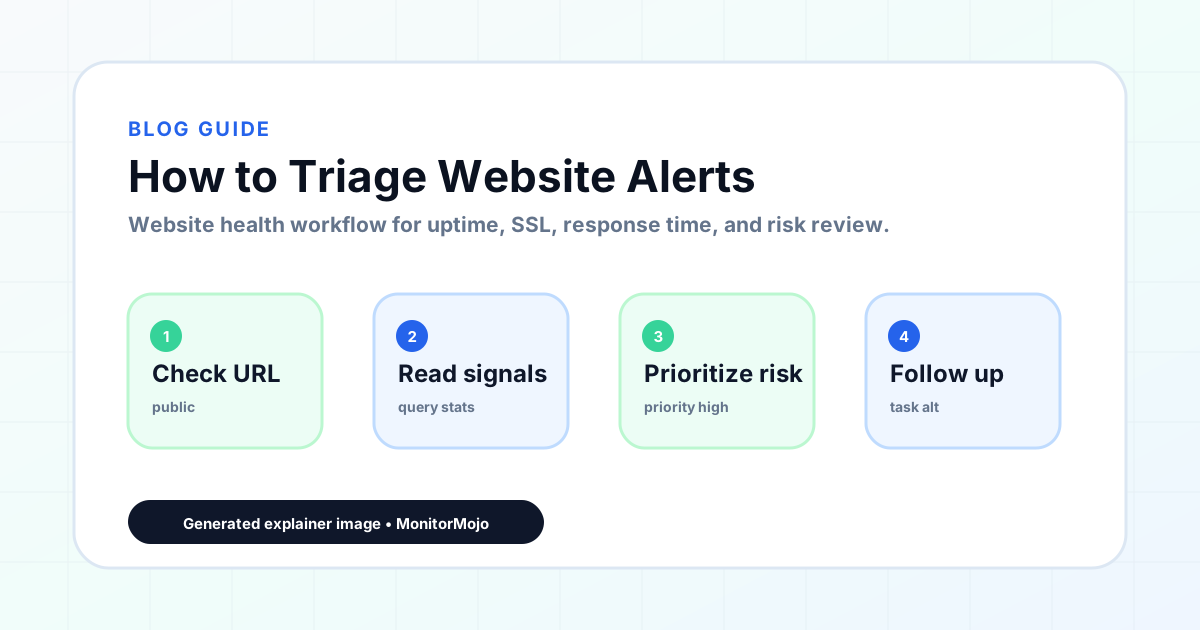
How to Triage Website Alerts
Triage is the step before you decide whether to escalate or notify anyone — it is where you figure out if what you're looking at is real, and if so, how urgent it is. Get triage wrong and you either sit on a genuine outage or wake someone up over a network blip. This guide covers a simple severity framework and the confirmation steps that should happen before anything moves further down the incident chain. This expanded guide explains the practical monitoring workflow behind the topic, who should use it, what to check, how to document findings, and how to turn website health signals into useful client, developer, API, CLI, or AI-agent workflows without overstating what monitoring can prove.
What Triage Actually Means Here
Triage is the assessment step: something has come to your attention — a failing check, a client message, a monitoring result you ran yourself — and before you do anything else, you need to figure out how serious it is and whether it's even real. It happens before escalation and before any client communication, not alongside them.
Since MonitorMojo does not run continuous background monitoring or send its own alerts, the trigger for triage is usually one of: a check you ran on a schedule via the API or CLI that came back failing, a client reporting something looks off, or a manual check you ran after a deploy. Whatever the source, the triage question is the same — is this real, and how bad is it?
Triage also has a time-of-day component worth planning for. A failing check that surfaces at 2am from an overnight scheduled job doesn't need the same immediate human response as one surfacing during business hours — deciding in advance which severities genuinely justify waking someone up, versus which can wait for morning triage, avoids both burnout and unnecessary delay on things that actually matter.
A Simple Severity Framework
Sorting incoming signals into a small number of severity levels keeps triage fast and consistent, especially across a team where different people might be the first to notice something.
- Critical: site unreachable, connection timeout, or 5xx errors on the homepage or a key page
- High: SSL certificate invalid, expired, or expiring within days; a core page returning a 4xx it shouldn't
- Medium: response time significantly above the site's normal baseline; a non-critical page erroring
- Low: a missing security header, a single slow check with no repeat pattern, a cosmetic issue
Handling Ambiguous Cases
Not everything fits neatly into a severity level on the first look, and that's fine — treat ambiguous cases as one level more urgent than your gut says until you've confirmed otherwise. A checkout page acting strangely on one browser might be Medium or might be Critical depending on how many visitors use that browser; err toward the more cautious read until you know more.
It also helps to distinguish between a site-wide issue and a page-specific one early in triage, since the response is different. A single broken page on an otherwise healthy site is rarely Critical even if that page is important, whereas the same symptom appearing across multiple pages often signals something at the server or hosting level that deserves a higher severity.
Confirming Before You Act
The single biggest triage mistake is acting on one data point. Before treating anything as Critical or High, re-run the check. A timeout can be your own network, a DNS hiccup, or a momentary host issue that resolves itself in the time it takes to check again.
If the second check also fails, try checking from a different vantage point if you can — a different network, a teammate's connection, or a browser directly. Confirming a failure two ways before escalating or messaging a client saves you from false alarms that erode trust over time.
Note what changed recently. Was there a deploy, a DNS change, a hosting migration, or a plugin update in the last few hours? Recent changes are the most common cause of a real failure and point you toward the fix faster than starting from zero.
Distinguish between a failure that's consistent across repeated checks and one that's intermittent — appearing on some checks and not others. Consistent failures point toward something structurally broken (a bad deploy, a down server); intermittent ones often point toward capacity issues, a flaky third-party dependency, or DNS inconsistency, and may warrant a different kind of investigation than a straightforward outage.
A Practical Triage Checklist
Run through the same short sequence every time so triage doesn't depend on who happens to be looking at it that day.
- Re-run the check to rule out a one-off blip
- Note the exact status code, error, or symptom — not just "it's down"
- Check what changed recently (deploys, DNS, hosting, plugins)
- Assign a severity level using the framework above
- Decide: handle it yourself, escalate internally, or both
- Log what you found, even briefly, before moving to the next step
Common Triage Mistakes
Treating every red flag as an emergency burns out whoever is on triage duty and trains the team to tune out real alerts along with the noise. Not every failing check is a Critical.
Skipping the re-check before escalating is the second most common mistake — a huge share of "outages" resolve themselves on the second look and never should have left triage.
Ignoring a pattern of recurring Low-severity items is a subtler failure. One missing header or one slow response is noise; the same site showing the same Low-severity symptom every week is a trend worth a real look.
Not having agreed severity definitions means two people on the same team can triage the same symptom completely differently, which makes escalation decisions inconsistent.
Doing triage from memory rather than a written checklist is the final common mistake — under time pressure, people skip steps they'd never skip on a calm day, which is exactly when a re-check or a note on what changed recently gets forgotten and a false alarm slips through.
How MonitorMojo Helps
Confirming a failing check is exactly what an on-demand MonitorMojo check is built for — re-running a check takes one credit and gives you a fresh, timestamped read on reachability, SSL, response time, and headers rather than relying on stale data.
Check history lets you look back and see whether this site has thrown the same symptom recently, which is the fastest way to tell a one-off blip from a real pattern worth escalating.
If you're triaging alerts fed from your own scheduled checks, the API and CLI let you pull failing results directly into whatever triage tooling or spreadsheet your team already uses.
What this workflow means
How to Triage Website Alerts is best understood as a repeatable website health workflow, not a promise that every outage or configuration issue will be avoided. A framework for the first few minutes after you learn something might be wrong with a site — how to sort real problems from false positives and decide what actually needs action first.
In practice, this workflow centers on uptime, SSL certificates, response time, security headers, website health summaries, and monthly review notes. Each check is planning input: it can show that the site is reachable, that a certificate has a given expiry window, that response time has shifted, or that a header is missing. It cannot prove root cause by itself or replace a human response. The value is in making the review consistent enough that site owners and small teams can spot issues before someone downstream has to ask about them.
Who should use this
This is most useful for site owners and small teams. Agencies with more than one person who might be first to spot a problem
Beyond that primary audience, the same checks are reusable by anyone with a public-facing URL that matters to revenue, leads, or reputation: a recurring review is cheap insurance compared to hearing about the problem from a client or customer first.
Step-by-step monitoring workflow
Start by listing the URLs that actually matter instead of just the homepage — for a small team doing a routine check before something breaks in front of a visitor, that usually means the pages tied to revenue, signups, or trust, not every page on the site.
Next, define the check types for each URL: reachability, HTTP status, HTTPS/SSL certificate status and expiry window, response time, redirect behavior, and security header presence. For API, CLI, and AI-agent workflows, document which endpoint or command runs the check and where the result is stored.
Set a cadence that matches the risk — a low-traffic page may only need a monthly look, while a page tied to revenue or signups deserves a check after every deployment and before any campaign or launch.
Record what you find with a consistent format: URL, check type, status, issue, owner, detected date, and next review date. Then say what actually happened in plain language — a check can surface a symptom, but site owners and small teams still need to confirm the cause.
- Choose the URLs that matter most to visitors, clients, revenue, and operations.
- Run uptime, SSL, response time, and security header checks on a consistent schedule.
- Triage failed or risky checks by likely owner: hosting, DNS, SSL, code, platform, or third party.
- Record notes in a repeatable format so future reviews do not start from scratch.
- Send a plain-language summary with the issue, impact, owner, and next review date.
- Run a confirmation check after remediation so there is an external result to reference.
Checklist or template
Use this template for recurring reviews: [URL], [Check Type], [Status], [Issue], [Priority], [Owner], [Detected Date], [Resolved Date], [Next Review Date]. Add a one-line summary at the top: what changed, what needs attention, and who owns the next step.
For site owners and small teams, group findings into the four signals that matter most: reachability, SSL status, response time, and security headers. Where nothing needs action, say the check found no issue in that area rather than implying full coverage.
- [URL]: the exact page or endpoint checked.
- [Check Type]: uptime, SSL, response time, headers, API, CLI, or agent workflow.
- [Status]: pass, review, failed, blocked, or needs human investigation.
- [Issue]: the observable symptom, not an unsupported root-cause claim.
- [Owner]: agency, developer, host, DNS provider, client, or third-party vendor.
- [Next Review Date]: when the team should confirm status again.
Common mistakes
The most common mistake is monitoring only the homepage while a checkout, signup, or booking flow silently breaks. Another is assuming SSL auto-renewal always works — it can fail quietly, and an external check is the only way to catch that before a browser warning does.
For site owners and small teams specifically, the recurring miss is treating one clean check as proof the whole site is fine, or fixing an issue without ever writing down what happened — which means the next person repeats the same investigation from zero.
- Tracking too many low-value URLs while missing the ones that matter.
- Skipping notes after an issue is resolved.
- Reporting a status without an owner or next step attached.
- Assuming automation can resolve an incident without human review.
- Treating one clean check as proof that every risk is covered.
Practical example
Consider a small team doing a routine check before something breaks in front of a visitor. A scheduled check flags that the site is slower than its usual baseline and that a security header is missing. Instead of guessing, the team logs the observation with a timestamp, assigns an owner, and re-checks after the fix ships — turning a vague "something feels off" into a specific, closed-loop task.
How MonitorMojo helps
MonitorMojo runs website health checks that combine reachability, SSL certificate status, response time, and security header presence in one workspace, so this workflow doesn't require stitching together several separate tools.
The API and CLI make the same checks scriptable for site owners and small teams who want them wired into an existing process, while credit-based checks keep it practical to run reviews exactly when they matter — before a client call, after a deploy, or when someone asks whether the site is healthy. Results still depend on hosting, DNS, and how quickly the responsible team acts on what the check finds.
Who this is for
- Agencies with more than one person who might be first to spot a problem
- Freelancers who want a consistent first-response process instead of ad hoc reactions
- Anyone piping their own scheduled checks into a shared inbox or Slack channel
- Teams that have been burned by escalating on a false positive before
Frequently Asked Questions
What's the difference between triage and escalation?
Triage is assessing what came in and deciding how serious it is. Escalation is what happens after — deciding who else needs to be pulled in and when, based on the severity triage assigned.
How many severity levels do I actually need?
Three to four is usually enough — more than that adds decision overhead without adding useful precision. Critical, High, Medium, and Low cover the vast majority of real-world website issues.
Should I always re-check before treating something as real?
For anything above Low severity, yes. A second check costs you a couple of minutes and rules out the most common false positive: a transient network or DNS blip that looks identical to a real outage on the first check.
Does MonitorMojo triage alerts for me automatically?
No. MonitorMojo does not generate or prioritize alerts on its own — it runs the on-demand check you request and gives you the data. Triage is a decision your team makes using that data, whether you're checking manually or feeding scheduled results into your own process.
Does a good triage process guarantee I'll never miss a real issue?
No. A consistent triage process reduces wasted effort and inconsistent responses, but it can't catch something that was never checked in the first place, and it doesn't prevent issues from occurring — it just helps you respond to what your checks surface.
Can this prevent every issue with the site?
No. Monitoring helps site owners and small teams detect website health signals and organize follow-up, but it does not prevent every outage, SSL issue, slow response, or third-party failure. The result still depends on hosting, DNS, infrastructure, and how quickly the responsible team investigates and responds.